We remain fully operational. Our teams are working around the clock to ensure your deliveries continue safely.

DOWNLOAD THE APP


Customer Services
Copyright © 2025 Desertcart Holdings Limited
DOWNLOAD THE APP
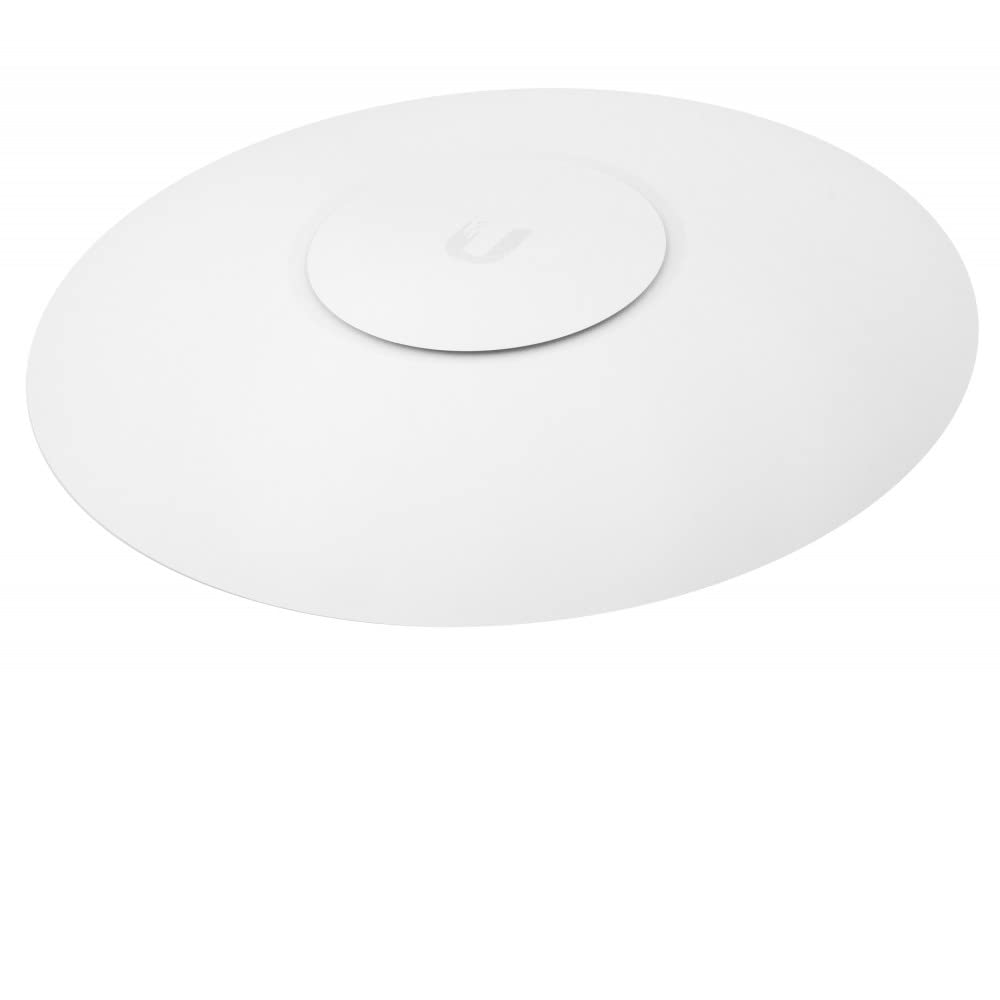
🚀 Elevate your Wi-Fi game — coverage and control that means business!
The Ubiquiti UniFi UAP-AC-PRO is a high-performance dual-band 802.11ac access point delivering up to 1300 Mbps speeds and extensive coverage up to 400 feet indoors. Designed for prosumers and professionals, it offers centralized network management via the UniFi Controller software, supports over 200 concurrent clients, and features passive Power over Ethernet for flexible installation. Its sleek, minimalist design fits seamlessly into any environment, making it the go-to upgrade for reliable, scalable, and fast wireless networking.


| ASIN | B015PRO512 |
| Antenna Location | Business |
| Best Sellers Rank | #35 in Computer Networking Wireless Access Points |
| Brand | Ubiquiti Networks |
| Built-In Media | Part |
| Color | White |
| Compatible Devices | Personal Computer |
| Connectivity Technology | USB |
| Control Method | App |
| Coverage | Extensive (up to 150 feet indoors) |
| Customer Reviews | 4.6 out of 5 stars 5,494 Reviews |
| Data Transfer Rate | 1300 Megabits Per Second |
| Frequency | 2400.5 GHz |
| Frequency Band Class | Dual-Band |
| Global Trade Identification Number | 00810354023439 |
| Is Modem Compatible | No |
| Item Dimensions L x W x H | 7.7"L x 7.7"W x 1.4"H |
| Item Type Name | Ubiquiti UniFi AP AC Pro |
| Item Weight | 12.32 ounces |
| LAN Port Bandwidth | HT 20/40, VHT 20/40/80 (MHz) |
| Manufacturer | Ubiquiti |
| Maximum Upstream Data Transfer Rate | 1300 Megabits Per Second |
| Model Name | UAP-AC-PRO |
| Model Number | UAP-AC-PRO |
| Number of Antennas | 3 |
| Number of Ports | 3 |
| Operating System | UniFi OS |
| Other Special Features of the Product | 2 x 10/100/1000 Ethernet Ports, 200+ Concurrent Clients, 3 Dual-Band Antennas, 3 dBi each, Passive Power over Ethernet, Range of up to 400' |
| Security Protocol | WPA, WPA-PSK, WPA2 |
| Special Feature | 2 x 10/100/1000 Ethernet Ports, 200+ Concurrent Clients, 3 Dual-Band Antennas, 3 dBi each, Passive Power over Ethernet, Range of up to 400' Special Feature 2 x 10/100/1000 Ethernet Ports, 200+ Concurrent Clients, 3 Dual-Band Antennas, 3 dBi each, Passive Power over Ethernet, Range of up to 400' See more |
| UPC | 636676644776 810354023439 703624195991 |
| Unit Count | 1.0 Count |
| Voltage | 48 Volts |
| Warranty Description | 1 Year Limited warranty |
| Wireless Communication Standard | 802.11a/b/g/n/ac |
| Wireless Compability | 802.11a/b/g/n/ac |
J**.
Finally, Whole home/office coverage
EDIT: Trimming some unnecessary fluff, adding some recommended settings This is a great AP. All in all I can't recommend it enough. Easy to set up and install, with more on that below. On the software side setup is not complicated despite not technically being a consumer facing product, and it can be done either on a PC, mac, linux, or a phone app. The controller software does not need to be running after the initial setup unless you want to change the configuration settings / monitor usage / etc. It runs fine out of the box with minimal configuring, but you can really delve down into the settings and tweak just about everything which speaks to my inner control freak. I really like the software a lot - in fact I just ordered a USG just so I could control my routing through the same interface because it is so nice to use. On the hardware side if you can use a power drill you can put this pretty much wherever you please so long as you can get an ethernet cable to it. I was able to run cables from my existing router to the attic, and from there to the APs. I mounted mine to the ceiling so it was just a matter of pulling cable through the attic and popping the end through a small hole drilled near the AP, no fishing cable through walls required. If done properly the installed look is seamless and looks much like a smoke detector. The status lights on the AP can be turned off via software so it can live in a bedroom or anywhere else where dark is preferred. ****To get the most out of 5g***** If you want to get maximum possible speeds a little extra configuration is needed. I recommend opening the configuration software and going to the devices tab, clicking the AP you want to configure, and selecting the configuration tab from the device menu that pops on the right. From there, under the radios tab set the channel width to the highest setting you can - HT40 for 2g and VHT80 for 5g. That said the higher the channel width the more susceptible you are to interference from other access points so I recommend doing an RF scan (under the details tab) to make sure you have available airspace if you live close to lots of neighbors. You can enable advanced configuration on the settings page to control band steering and whatnot, but despite setting it to prefer 5g my desktop would randomly hop on the 2g network so I ended up just disabling the 2g radio entirely to force 5g from that AP. There are a couple ways to disable the 2g radio - you can go to the configuration menu then WLANS tab and click the little edit icon under the 2g network and uncheck "enable on this AP" or you can go to the radios tab and set the transmit power to custom and enter 0, either should have the same effect.
R**E
Excellent Product! Especially If Coming From Consumer Grade Wireless Routers!
I recently bought this and have only had it for a few days (time of writing obviously) but so far it has been a real eye opener. This is from someone that normally would buy your typical mid-high end wireless home routers from ASUS, ASROCK, TP-LINK etc.. Now, I am no Network Engineer and/or IT Specialist but I am what can be considered a "prosumer" or "power-user". I know plenty of advanced topics and concepts in networking but in no way to the deep level understanding that a professional Network or IT engineer would. That said, I've only had it a few days and being a relatively simple product (in terms of what its main purpose is) I will go over the main differences "I" noticed when moving to an AP + Gateway/Router + Modem HOME solution instead of the typically Wireless Router + Modem only solution. The first thing you will immediately notice is that this is NOT going to be plug n play like a wireless router would. Now, that is not to say that this is a pain to setup but just FYI this will require at least a bit of effort besides hooking up Ethernet cable(s) and applying power. Now, as a prosumer I like tinkering and what not so this is fine by me. Honestly, the most time-consuming part of this process is mounting it. Actually setting it up software wise is extremely easy. The inevitable question will come up...do I have to mount it on the ceiling/wall? NO you do not. It can be just sitting somewhere on a flat surface if you wish but obviously its not recommended not because it won't work but because wireless coverage/throughput won't be at its best and if your spending this much to upgrade your home wireless network you might as well go the extra mile and get everything you can out of it. The software you literally just follow the instructions, download the controller software to a PC/Laptop/HomeServer ect... and execute. The software is intuitive and you will pick up on the GUI quickly with simple exploration/discovery. It handles the initialization, configuration & monitoring of the AP. Now for the impressions. MASSIVE difference compared to having a singular Wireless Router powering your whole house/apartment. In my case, I have about an ~1200 sqft apartment. I mounted it on the ceiling near the center of the apartment in the most open area (Living Room + Dining Room + Kitchen) and used a 50ft CAT5e shielded UTP Ethernet cable to neatly route it back to my now WIRED only router (If you are staying with a wireless router, disable ALL radios) + POE Switch Combo. My whole apartment is literally covered with "Full Bars" of coverage. The lowest point I could find was way back in the Master Bedroom where it was a good -62 dBm (Anything above -65 dBm is good IMO). Before, I could not go to my Bedroom without experiencing intermittent drops and/or LAG. Not to mention that when I did have a connection there it was sometimes slow, as in Youtube constantly buffering slow. This is no longer the case and I am really impressed. The Controller software also has some pretty advanced features which I like and the interface and how it shows you stats and data is really neat and slick. The LED Blue light CAN be turned off if you wish. Overall, really satisfied and will no longer rely on wireless routers or all-in-one solutions again. Honestly, although it is more work, it is far worth it to avoid hassling with the router and the frustration of dealing with slow internet when you KNOW you are paying for high speed internet (In my case its 200 Down, 20 Up) and are not getting those results. Now granted, this is wireless we are talking about so you will RARELY get your full internet speed if your roaming around or not in line of sight of the AP. In my case, If I am in the living room or anywhere within line of sight and maybe 20-40 ft away It will get pretty close sometimes even full speed (Average I'd say 170-180 mbps out of 200 Max). Anywhere not line of sight and an appreciable distance away will drop it to an average of 90-120 mbps which is STILL EXCELLENT compared to my previous numbers of 5-10!! This is on both the 2.4 GHZ and 5 GHZ bands as well as using an AC device (Galaxy S Phone). If your case is similar to mine and don't mind tinkering, DITCH the wireless router and get a good Wired Router/Gateway because those have much better hardware for handling plenty of traffic since they don't worry about radios. BUY this AP because of its easy and slick GUI AND the fact that the company Ubiquiti has other products that have similar design style and will integrate nicely together with ONE software package (Big deal for me maybe not for others). Highly Recommended!
D**N
Amazing! I finally have rock-solid Wi-Fi through my house
I've been running an Apple AirPort Extreme + 2 Airport Express's to cover our 3600 sq. ft. 2-story home, but coverage was still spotty and my connection would often drop back to 2.4Ghz in my office, partly due to interference from my neighbors' Wi-Fi networks. It meant frequent buffering of WebEx and Zoom meetings, and a general frustrating experience. Enter Ubiquti. Where have you been all of my life? I learned about this system from a colleague at work who'd been using it for a while. I set up the controller software on an 8-year-old Dell laptop running Windows 10 I was already using for my security cameras, and plugged the Unifi access point into my network. The software recognized it and provisioned it right away. I set it up with the same SSID and password as my Airport network, and once the Unifi was up and running, I turned off the wireless radios in my extreme base station with the Apple Airport app, and then went around the house to unplug the 2 Airport Express's - all of this while my wife was on a Webex call for work. Voila! Seamless transition to the Unifi with zero disruption. Now for the best part: The Unifi AP is sitting on a shelf in a downstairs coat closet that's centrally located in the house, and the same location where I had the AirPort Extreme previously. I'm getting 95% or better Wi-Fi experience scores (according to the controller software) for every device in the house - all 24 of them. And that claim seems legit because FaceTime, video streaming and WebEx calls are crystal clear, even in locations farthest away from the AP. My wife often takes video calls from an upstairs guest bedroom, which is the farthest point in the house from the AP, and the quality is perfect, with never any buffering for her now, when previously it was spotty with my Airport network. There's also an Amazon FireStick in that room that used to buffer a lot, but now streams 4K video with no buffering. I'm also getting great coverage on our screen porch outside, which used to be in a Wi-Fi shadow from the Extreme, but too far from an Express to get a reliable signal. The garage, front porch and driveway also have a signal strong enough for reliable FaceTime calls now. In short, I'm completely blown away by this thing. I can't believe that a single Wi-Fi AP sitting on a shelf in a closet, amidst a sea of other strong Wi-Fi signals from neighboring houses, can deliver such stellar performance to every single device and location in our home. But it does. I should also note that I bought two of these things assuming I would need to install a second one upstairs to get acceptable coverage, but I don't, so I'll take it to our second home and set it up there, replacing the Airport network there, too. So here's my final setup: 1 Unifi Pro AP 1 Apple AirPort Extreme being used as the router with the radios turned off 1 Motorola cable modem 1 old Dell PC running the controller software And one final thing: the Unifi mobile app is a thing of beauty and gives me quick access to performance stats, etc. I'm so happy to finally have a commercial-grade Wi-Fi system that's as solid and reliable as I want it to be. Update 1/29/23: Still thrilled with these access point. They’ve been rock solid, hassle free and trouble free for almost 3 years now.
T**E
Simplified my life
I purchased this to go with a Ubiquiti Unifi Security Gateway Pro I got through the Vine program. It has been one of my better technology purchases over the past few years. I have no idea how it operates when separate from the security gateway. I do know that it is fantastic with the gateway. If you know your way around a network, this Unifi gear is pretty awesome for home and small offices. In fact, you can manage both your home and your office from the same control panel. Yeah. To be clear - this isn't consumer grade gear and home networks are probably not the intended use. But... this stuff is oh-so-good for homes with lots of networking bits - which will soon be just about every home. Another point is that this access point looks like a required first hop for the Unifi mesh nodes. Mesh networks are wondrous. You want one. Following is the review I wrote for the security gateway. It covers the access point too because they operate as a single system. ----------- This thing, along with the PRO Access Point , has really simplified my networking life. My home network is somewhat complicated because there are the various IOT devices and gadgets that I want to keep isolated from my serious systems that are used for work. The reason this Ubiquiti gear has simplified things is that I've gone from a cluster of routers/access points down to a nice clean install. The WiFi part of the network can have four SSIDs from that one access point. This is a nice improvement over the purely consumer grade stuff that is being supplanted because I've been partitioning via multiple WiFi routers with each having its own SSID. My knowledge level is that I've used lots of consumer grade equipment and have turned linux boxes into poor man's routers. Basically, it's been setting up SOHO stuff at the start-up level and then getting out of the way when corporate IT types show up with all that fancy (and expensive) CISCO gear. I've always been one to suffer a very inexpensive pile of gear over a costly install in a rack. This Unifi gear has me questioning those life choices because the price point drew me in and because it is so much easier to deal with this gear than my old rats nests. The configuration bit isn't that difficult but there have been a few frustrations along the way. For example, WiFi devices having the same SSID can see each other period. I was hoping to isolate them using firewall rules, but that simply did not work. It would be fantastic if this had worked. Instead, I had to set up additional SSIDs on different VLANs. Regardless - having the flexibility to do this is a huge step forward over my previous headache. Another huge plus is that it is now far easier to install new WiFi devices. My netgear and tp-link devices made it a pain in that they are aimed at the consumer who isn't very concerned about security. That said - I'm still looking for a MAC whitelist ability in the Unifi software - I really like to lock things down. I currently have the Unifi control software installed on an old laptop and it runs fine. Even so, I'll certainly be looking into the cloud key and cloud control capabilities. The capabilities of the Unifi configuration/control software are amazing in that it is so much and so easy to get to. The other thing I'm eager to put in place at home is load balanced WLANs. I currently have a cable modem and connect through Comcast. When Comcast craps itself, I'm out of luck. Also, Comcast can't support a blazingly fast pipe into my house - the wires won't support it even though they'll sell me "up to" some impressive speeds. Century link is about the same - there's fiber nearby but the copper in between ain't all that. So, it's now time to get a connection through centurylink, hook it into the WLAN2 port, and see if the two service providers (unknowingly working together) can give me a nice fat pipe. Another thing on the to-do list is setting up VPN through this box so that I can retire the linux box that has been handling that chore. I'm really loving this Unifi gear. If there's anything disturbing its that this Unifi gear appears to not support IPv6. Yeah, we're doing OK with just IPv4, but it would be nice to get that IPv6 goodness going just to see what else is enabled.
T**T
Excellent signal. Easy setup. And it looks way cool!
So I have pretty much used it all--- Netgear, Asus in stock and dd-wrt reflashed forms, Cisco, as well as the pay-per-month rental cable and FiOS routers. And yes, I know this is not a router and only an AP--- the WiFi portion is what I am after in solidifying its performance. As you can say--- stock is stock. I never liked stock. I have suffered with crappy WiFi for some time with my FiOS Quantum Gateway--- sounds fancy and future proof, but in reality it is fair overall. What started the trend of me revamping everything was when I had an issue with an HDMI cable that is in the wall between my FiOS One Mini and TV. If you're not familiar that--- it is simply our "cable box" that can connect via coax, wireless, or wired. Great options-- when they work. Twice before I had issues and I boiled it down to being taken out by nearby lightning strikes. Lucky me. So this was the last straw as I lost TV, again....I had to remind myself that it can go WiFi without the coax cable....interesting. So I moved it behind the TV and it worked....kinda. The FiOS WiFi router was 40' straight line away and on the floor below 7' in the air on top of a bookshelf. I have a number of other devices that work wirelessly without issue and it simply is not happy. And then my LG smart TV also decided to have a little fun and join in on the mischief and make accessing Zmazon Prime Video a real treat as well. Temporary solution? Wired Ethernet connection for both. Solved all the issues. Yes you can reboot it until the cows came home--- still never improved and always means something else will have to be rebooted too. Step forward and I have moved, and this time I designed all of my equipment to live on network racks in the basement...period. No more bits and pieces spread around the house and jammed in stupid places that made figuring an issue out extremely taxing to say the least. Plenty of redundant CAT6 run everywhere and done right. So I moved the FiOS equipment--- and same basic issues also moved along as well--- but this time instead of having wires strung around like Christmas lights--- I had plenty of dedicated CAT6 and coax runs to run as much wired as possible, including one very special run--- for this AP. Mounted in the first floor ceiling--- coverage in the same size house went from also being just as poor as the other house with the FiOS WiFi to excellent with the Ubiquiti AP. I was originally going to use two--- but after installing the first, I do not see a need for a second. End result--- I just picked up some other necessary components including some Ubiquiti parts to make the switch and completely ditch the Verizon router once and for all. For me it is all about flexibility and simplicity while maintaining a complex network of devices. Looking for a quality unit that has what I would consider one of the best WiFi signals and radius' around? Look no further.
B**W
Great AP, but make it should be less reliable on the Ubiquiti ecosystem.
I really, really like this thing. I am a computer security "expert" with about 10 years in the field, and I try to keep my home network fairly secure and easy to use. In my house, I have a virtualization server, networked printer, pfsense firewall, a dozen or so IoT devices like Wemo switches, Smartthings (not wifi, I know), smart DVD players, laptops, tablets, and in general, a lot of IP-enabled toys running on multiple networks. Up to this point, I have used a couple of DD-WRT-flashed linksys routers to act as APs to run everything connected by a pfsense firewall on physical networks, but I'm getting tired of running cables throughout the house if I want speed, and having to maintain disparate APs throughout the house. For me, the tipping point was when I realized that if I tried to download an iso from my wifi network, I got 2Mbs in speed while I had 85Mbs on a hard line. Now enter the Ubiquiti AC Pro. I have a terrific friend who is a network guru and he pointed me at these. I went ahead and ordered the pro, which I figured was overkill. I knew I wanted AC, as my work laptop had an AC card, and my ISP provided plenty of bandwidth. One drawback (or feature) for Ubiquiti is that it requires a computer to run the software to configure it. My friend used a Raspi to run his, but for me, I simply spun up another VM on my virtualization server to handle the management. I think there's a phone app, too, but I went with a VM, and it has worked great. I spun up a Ubuntu 16 VM and installed the software (I had to install Java manually and then edit the repo list; your experience may vary, but the tutorials online are OK, just check that they are recent). Once I got everything installed I set up a trunk line to the AP and set an untagged management network on the trunk line. (I am not sure if this is required, but it worked for me). Setup was not as intuitive as I would have liked, but still leaps and bounds above the sometimes cryptic steps required to make DD-WRT to work correctly. Certainly, this is not something that a non-technical person should try, but it does not exactly require a CCNA to get going. The results are great; I run 6 networks off this device, and I can keep some networks reserved for fast devices and some for slow devices to prevent congestion and slowdown in a mixed mode environment. On the whole, I think it took just over a hour to confgure the networks, including troubleshooting and firewall checks that had nothing to do with the AP. Whereas before I was getting 2Mbs on wifi and 85 on a hard line, now with an AC device, I get about 60-80 Mbs on wifi. The signal is really string throughout the house and basement, and even in the yard. What I like: (1) Replaces a lot of other hardware (2) Gives you an enterprise-grade AP at consumer prices (3) Terrific features (4) Single point of management (5) PoE means I can put it wherever I want and only have to run cat cable. What I did not like: (1) Calm down with the extra add-ons. I was concerned because when I updated the firmware, the AP said it could not connect to my LAN, so I tweaked settings and checked firewall rules, then ssh'd into the AP and pinged google, only to find it could get to the internet. Turns out that by default that status screen requires you to have a bunch of Ubiquiti-branded switches and hardware to correctly display the network status. Guess what? Let me pick how you determine that the network is up. Let me give you an IP, protocol and (maybe) port for the AP to check. (2) I spent several hours trying to pair my Wemo switches and outlets to a 2G network on this device, and failed over and over again..... turns out this is a fairly well-documented problem. Despite wanting to quit using DD-WRT devices, I still have one plugged in because the Wemo stuff will connect to it, and not the Ubiquiti. In conclusion: a really nice wireless AP for a tech-savvy person who wants a lot of control over a home network, or even an enterprise network. (comparatively) easy to manage and very fast.
R**.
Amazing through and Range, but you need more than just this.
Fast shipping and it is exactly what I wanted. Now, let's talk tech for a moment. I won't bore you with a bunch of acronyms, as if you are a tech-type person, you already know this Access Point is pretty robust. I purchased this, along with the Cloud Key and the Edge router. Why? Because I am tired of having my current router (Asus RT-66AC) lose its config every month or so. I have to spend time reflashing the firmware though the emergency recovery application. Now, I don't fault Asus; as for the last few years, it worked very hard and I got my money's worth out of it (~$250 US). I decided to move to an Enterprise class network for my home, as we are putting up cameras and doing a few other projects that need a stronger infrastructure than a consumer grade (if rather higher end) router. The range on this AP (Access Point) is nothing short of mythical. We can walk around a rather modest size block in suburbia hell (where we live) and our phones can remain connected through all but the absolute furthest point from our home. The throughput of the AP is so much better, even the wife has noticed (which is saying something). Remember this is JUST an access point. It came with a PoE (Power over Ethernet) injector, so I can put the AP up somewhere and there is only a single cable that I have to figure out how to make invisible so the wife doesn't give me "the look". When she sees cables, well, she may be little but she is fierce. Anyway, the software that you have to have to really manage this AP is simple, yet powerful. If you aren't technically inclined, you'll have a few extra tabs open in your browser, looking for what some functions do but to be honest, unless you have some special requirements for your network, and lets face it, if you do, then you either have the knowledge or your day is going to end in tears; I would say even my 12 year old daughter could set this AP up with the (sold separately) Cloud Key. Once you have the Cloud Key (or a computer to run the Ubiquiti management interface) you will need with the Edgerouter or the Unified Security Gateway. If you want everything in one place and one interface, the Security Gateway is the way to go. If you are a geek like me, you will need to purchase the Edgerouter. All told, my new network cost me ~$300 US. A bit more than a high end router with an integrated wireless AP, but totally worth it. Did I mention you can do DPI (Deep Packet Inspection) with this setup? Yeah, our teenagers are going to find Snapchat just runs REALLY slow for some unknown reason.... /evil grin
K**D
Great Product
I have a existing switch and 4 Assus routers. I use one as a router and the other three as access points I replaced the firmware and used dd-wrt to give me more flexibility. This setup has been very stable for the last 3-4 years. But we have had some buffering issues as we have added more video devices. Also, I wanted to add a guest network, but was having trouble navigating the dd-wrt software for that feature. I am always on the lookout for the next set up. I tried the eero, but returned it very quickly because it had worse buffering issues than what I was experiencing. Then I found the Ubiquiti setup. I was a little dubious of it initially because the cost of everything I wanted was about the price of 1 and 1/2 of the routers that I was looking at buying. So I decided to give it a try. My experience so far is that this is a great product. I installed last night and have been running it and three access points with my existing switch. I have not received the cloud key. So I will redo the set up once I receive the cloud key. I downloaded the controller software from the ubiquiti site and installed it. I have deducted one star solely because of issues from installation. I have an iMac. I connected the gateway, and the three access points to a switch. After I installed the software, I started it and got an error message that said that the software needed to be reinstalled in writeable directory. I searched online and the comments were that the issue involved a permission issue. I followed the suggestion of moving the app to the desktop. I tried that without success. Next, I delved into the permission issues mentioned in the comments. I ensured that I had read and write permissions and I followed the suggestions again without success. I went to bed and woke up in the middle of the night and decided to try it again, but this time I left the permissions unlocked. That did the trick and the software opened correctly. After that hiccup, everything went very well. The installation was easy. I set up the wireless network and the Gateway. After the set up was complete, I moved the new equipment and replaced the existing equipment. I actually moved the new equipment in place at 4 in the morning. The transition was seamless. Other than the installation of the software issue, I could not be more happy. I need the cloud key to set up the guest network, but I already have it ready to be implemented. The speed of the network is noticeably faster than our existing network (even though we are still using the same switch). I would say that it is 30% or more faster. One family member said that they were having problems in their bedroom, but it turned out that the iPad in question just needed to be restarted. Once restarted, it was noticeably faster. I will break down my review as follows: Gateway 5 stars Pro Access Point 5 stars Long Range Access Point 5 stars Controller Software (specifically iMac installation) 3 stars I am very impressed with this product.
Trustpilot
1 month ago
4 days ago