We remain fully operational. Our teams are working around the clock to ensure your deliveries continue safely.

Descargar la aplicación


Servicios al cliente
Sobre nosotros
Copyright © 2025 Desertcart Holdings Limited
Descargar la aplicación

🚀 Elevate your desk game with pro-level scans in a flash!
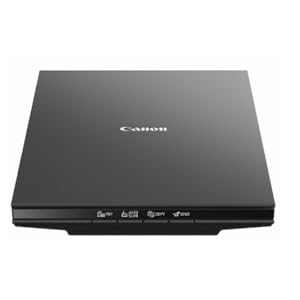
The Canon CanoScan LiDE 300 is a slim, lightweight flatbed scanner delivering ultra-high 2400 x 2400 dpi resolution. Featuring a 10-second fast scan speed, USB plug-and-play connectivity, and an intuitive Auto Scan Mode, it effortlessly digitizes documents, photos, receipts, and more. Perfect for professionals seeking a reliable, compact scanner that combines quality, speed, and ease of use—all backed by Canon’s trusted brand.
| ASIN | B07G5XZVLQ |
| Best Sellers Rank | #1,491 in Office Products ( See Top 100 in Office Products ) #1 in Flatbed Scanners |
| Brand | Canon |
| Built-In Media | CanoScan LiDE 400 Color Image Scanner, Setup CD, USB 2.0 Cable (USB A to Mini B) |
| Color Depth | 48 bits |
| Connection Type | USB |
| Connectivity Technology | USB |
| Customer Reviews | 4.2 out of 5 stars 6,911 Reviews |
| Global Trade Identification Number | 00013803306507 |
| Greyscale Depth | 16-bit Internal / 8-bit External |
| Item Dimensions D x W x H | 14.5"D x 9.9"W x 1.7"H |
| Item Type Name | CanoScan LiDE 300 Slim Everyday Scanner |
| Item Weight | 3.6 Pounds |
| Light Source Type | LED |
| Manufacturer | Canon USA Inc. |
| Media Type | Photo ; Receipt ; Business Card ; Paper |
| Minimum System Requirements | Windows 8 |
| Model Name | CanoScan |
| Paper Size | 2400 dots_per_inch |
| Product Dimensions | 14.5"D x 9.9"W x 1.7"H |
| Resolution | 2400 |
| Scanner Type | Document, Photo |
| Standard Sheet Capacity | 1 |
| UPC | 013803306507 |
| Unit Count | 1.0 Count |
| Warranty Description | 1-Year Limited Warranty |
| Wattage | 4.5 watts |
A**S
Little scanner, big results!
As an artist, I have been meaning to find myself a nice flatbed scanner for art purposes, scanning sketches or what have you, but found myself procrastinating until I could devote time to really look at reviews and figure out a high quality, high end scanner. I found myself in a position recently that I needed to manually sign some documents and get them to where they needed to be by the next day, but my car was in the shop. I thought maybe one of those portable wand style scanners might be good, and I could use it also to scan receipts, but they are so expensive, and I needed some thing that would be delivered the next morning. What came up was the Cannon LIDE 300, which would be delivered between four and eight in the morning, and this was perfect—I could sign the documents, scan them and upload. And I would also have a nice inexpensive scanner for things. I was looking for something that would be an overnight delivery, and dare I say, on the “cheaper” side and this fit the bill. This printer far exceeded my expectations. I realized with the first scan that this little machine was way more useful, and of a higher quality than its price would suggest. Inexpensive, yes, but by no means a cheap piece of equipment. I am on an older OS Mac, so I was worried I would not find some thing that would be compatible with my system, but in reading the reviews, it looked like the scanner would work—and there were some very helpful reviews on how to use the scanner without having to download any software for Mac. It was pretty much ready to go straight out of the box, plug into your computer, go to system preferences under “printers and scanners”, hit the plus sign and you can add this scanner. Use the “printers and scanners” window to access the scanner—just hit the “open scanner” button and it will give you the scanner “user” window. It starts immediately with an overview scan and from there you can change the resolution, the size, rotation angle, even the format —say PDF or JPG. You can even do image correction with brightness and contrast. It’s pretty intuitive —all you really need to do is play around with that scanner window for a few minutes and do some test scans and you’ll see exactly where you’re at. For each new page/item that you scan you need to close the scanner window, go back to the “printers and scanners” window and hit the “open scanner” button again… There may be a way for it to auto detect when you put a new page in the scanner, but I have not figured that out… Maybe I should take a look at the manual, which is still in its plastic bag… L O L. There is a “combine into single document” option, but I chose to just do separate PDFs, and then combined them in Acrobat. And it worked out great. The quality was fantastic! And the color 300 dpi test scans I did on some color items were phenomenal, and when you enlarge them up and look at the detail, I was just blown away… Much higher quality than I expected, and I’m starting to think maybe I don’t need a higher end scanner. As I said, I bought it as an emergency measure, but now I find myself with quite a useful, high-end (in my eyes), and inexpensive little scanner. I will probably be saying quite often “how did I ever live without this”… And again I’ll mention the price is right on point, pretty inexpensive for the quality that I’m seeing, and I deal with resolution/dpi levels In my job as an artist… If you need additional information, go in under the (Amazon) reviews for this scanner and type in Mac in the search window—that was very helpful for me in making my decision to buy this scanner… The information I ultimately used for how to access the scanner without software was from one of those reviews. The scanner worked with the cable that came with it, and in less than 10 minutes I was scanning… No download of software needed for now, but I might check that out in the future. I thought this review might be helpful for others who are on an older system Mac… Sometimes it’s really hard to find useful information on products, regarding compatibility with the older systems…For reference I am on Mac, Mojave 10.14.6. Because yes, sometimes the newer OS does not always equal the best. I will say, with the positive experience of this little inexpensive model scanner, I will upgrade to another Cannon scanner, when and if needed. That’s how strongly I feel about this scanner. PS the scanner does have copy, scan/auto send as part of its functions (buttons), but I’m guessing you probably would need to download some software for those functions. As noted, this was a quick solution for some “emergency” scans, and this device was perfect! I am looking forward to seeing what else this scanner can do.
S**E
Easy to set up. Thin and light. Good quality. Has preview in Settings/Device page.
Very nice color 2400x2400 dpi scanner. Easy to set up. Works very well. Comes with flexible Canon IJ Scan Utility which is very easy to adapt to .pdf, .jpg OCR stitch. It is very light and thin. My daughter liked the preview feature in the PC/Settings/Device page.
J**E
Works Well with Linux Mint with the Correct Software
I needed a flatbed type portable scanner I could use with my laptop when away from home. This one seems to meet that need for me (I haven't traveled with it yet). Since I use Linux Mint, the Canon software wouldn't work (shame on you, Canon, for not making Linux compatible drivers!), so I can't comment on how well the scanner works with Canon's software. I already use Hamrick's VueScan software on my other two scanners, a Canon 9000F flatbed scanner, and a Fujitsu ix500 duplexing, ADF scanner (both of which are NOT what I would consider portable!) and it works well with this scanner once I updated it. I haven't tried to use any of the scanners buttons since Vuescan easily and conveniently does it all from within the software. When I first tried to use the scanner with Vuescan, I went nuts trying to get the software settings to work the way I needed. It then dawned on me that I hadn't updated VueScan in quite a while since "nothing was broke so don't fix it." After I updated Vuescan (although the .deb version would probably work, the tarball—.tgz—version, when extracted, had a simple to use installer that automagically updated the current installation without changing the settings), everything started working perfectly. Another reviewer reported getting good results with the free to use xsane. The first time I used it, I noticed that it was hard to slide paper over the platen. I lightly moistened a microfiber cloth with water and gently wiped down the platen. After that, paper easily slides across the platten. The stand for the scanner is a joke. Trying to position a document or whatever on the scanner while it is in the stand will be awkward at best. One will have to be really hard up for space to find it useful. I put mine in the drawer of items that will never see daylight again. Also, my Canon 9000F uses the upper right corner has "home" for locating documents on the platen. The LiDE 400 uses the lower left corner as "home". This will take a bit of getting used to. Now for the pros and cons. Pros: 1. Inexpensive 2. Compact for a flatbed scanner that can handle up to letter size documents. 3. Lightweight 4. Runs off USB power so no power cords needed. (Canon says USB 3.0 is necessary for this scanner but I was able to run it just fine off a USB 2.0 port on my laptop; your "mileage" may vary.) 5. When using VueScan and the settings have been sorted out, it's easy to use. 6. Good quality scans. 7. 48" long USB cable Cons: 1. Anything being scanned must fit flat on the platen to be fully in focus, unlike my Canon 9000F which can focus on parts that may be as much as 1/2" from its platen (for my intended use, that will not be a problem). 2. It's noisier than my other scanners (not a big deal for me). 3. The lid is flimsy. This will be a problem when transporting the scanner since the lid won't be able to protect the glass platen unless precautions are taken to protect them (I've ordered a larger laptop bag so I can safely carry the scanner in the same bag with my laptop). 4. The lock slide on the bottom is stiff to move. It has to be locked when transporting the scanner and unlocked when using it. Being on the bottom of the scanner, it will be easy to forget to reset it every time the scanner is transported and set up for use. 5. 48" long USB cable (whether that is a pro or con will vary from person to person). For me, the cons were not enough for me to remove any stars from the rating. It should perfectly meet my needs. I do a lot of scanning (including some hard to scan items) so I wouldn't want to use this as my go-to flatbed scanner at home, especially since my old 9000F is still going strong but, for occasional use, the LiDE 400 should last me a long time. BTW, the description is wrong; it's 1.75" x 9.875" x 14.5".
P**N
great scanner especially for the price with great photo reproduction. 4800dpi requires setup
I love this scanner, but I'll start off talking about a certain aspect because I did see a lot of reviews saying you can't scan at 4800DPI or you are limited to a tiny image. After some trial and error, I found out you can do 4800 DPI. The limitation of the ScanGear software (included with the scanner) is apparently memory. But oh well. The image cannot exceed 50,000x50,000 pixels or 4GB. so that means the biggest image I was able to scan at 4800 DPI is 6.7 inches x 9.20 inches which is just below 4GB in size for a JPEG. I shouldn't have any limitations because my PC has 128 GB of RAM and 80 TB of storage but oh well. Note that this 6.7 inches x 9.2 inches is the output resolution. The input can be whatever can fit on the glass (example, 8.5 inches x 11 inches). In order to get to 4800 DPI, if you want to use the included Canon software, you have to use ScanGear. It doesn't appear to be available in Canon's other scanning modes. If you use a paid commercial scanning software like Vuescan, maybe this 4800 DPI memory limitation doesn't exist because the hardware can do 4800 DPI. Here's the key point, you have to go to the settings for ScanGear and select the checkbox for "Enable large image scans". I don't know why this is even an option. Whoever wrote the software should just allow for large image scans because it's only going to confuse people. If you don't set this checkbox, the biggest image you can scan is something like 14000x10000 pixels which means at 4800DPI, the biggest image is something like 2 inches x 2.5 inches. Once the setting is saved, go to ScanGear to scan the image. TYPE 4800 into the resolution box (don't use the dropdown arrow). Set max scan to 6.7"x9.2". That will produce a 4GB data file. If you're expecting to scan a 4800DPI 6.7"x9.2" TIFF image, you would probably need terabytes of RAM because it doesn't scan to your storage. It scans into your memory and then saves that image to disk. Considering a lot of users have only 8GB or 16GB of RAM, scanning a 4800DPI TIFF image isn't really feasible. Then you will be able to scan at 4800DPI. Remember, this 6.7"x9.2" is the output resolution. The input can be the full size of the scanner glass. For example, you put on a 8.5 inch x 11 inch paper. and then the output is 6.7"x9.2". And the last aspect of 4800 DPI scanning is how long it takes. This is not the seconds of scanning you get with 300 DPI or 600 DPI. No, this is many minutes. You really have to realize whether 4800 DPI is worth it to you. If you're scanning a printed photo, 4800 DPI won't really make it better. you're at the limit of the print. 4800 DPI aside, how is this scanner? It's super thin as a scanner. You can put books or whatever on the glass (platen). I thought about the Epson photo scanner where you can feed pictures. But then I realized it was $600 and that you can't scan books and non-fed sheets and it was limited to 600 DPI. This Canon is super fast at more normal resolutions (300, 600, 1200, etc.). It comes with a stand so you can have the scanner vertically positioned while scanning! Not sure how useful that is but it is neat to see it scanning something while vertical. The color reproduction and the scanner features are top-notch. I totally recommend this if you're scanning at 2400 DPI and below. I bought it mostly for photo scanning. For photos I plan to share through social media or email, I'll probably scan at 300 DPI or 600 DPI (that I then compress down) because email's limit is 25MB which is something like 7000x7000. I know the JPEGs I output out of photoshop from my digital camera are 45 megapixels (8192x5464 resolution) and 31.5MB in size so already too big for email or social media. If your main thing is scanning everything at 4800DPI, then I would suggest getting something else. For photos I'm going to print, I'll probably scan at 1200 or 2400 DPI. But if you'll only occasionally use 4800 DPI, then this can totally do it and do it well (as long as you're below 50000x50000 resolution). I just scanned a 32162x44160 which ended up being a 410 MB JPEG. It took about 20 minutes (ballpark estimate). Note that if 4800 DPI was seamless and was selectable from a dropdown menu, I would've given this scanner 5 stars. But for making it a hassle, I knocked off a star.
G**N
Great Canon Lide 400 Scanner BUT note the SERIOUS CAUTION in my Review
Works Great! I've scanned scores of photos using 600 dpi and am very pleased with the simplicity and results. Scanned a few documents with similar opinion. EXTREME CAUTION: Access the Canon Website for Driver download and Product registration by typing ij.start.canon in the address bar and not into a browser search. I typed it into a Google Chrome search instead and came upon a Canon site for Driver download that unknowingly took me to ij.start.cannon (note the mispelling). This is a very legitimate looking Canon site. When I entered the scanner model I received an error code and a phone number to resolve the issue. The phone number took me to a third party called MS Assistance LLC, who told me that they represented Canon and that the error code meant that I could not download the driver because I had foreign ip addresses connected to my network. I believed them and paid them $100 to connect to my computer and fix the problem. They then downloaded the driver to my computer for me. Then they told me that I needed a product called Network Privacy Shield to protect me from foreign invaders in the future. I believed them and paid another $199.99 for the software that they downloaded for me while still tied to my computer. Days later, my sister told me that Canon would never operate this way and that I needed to call Canon. I called Canon and was told that they had no knowledge of this company MS Assistance or of the error message that I received. While on the phone, they directed me to type ij.start.canon into the address bar and that took me to the correct Canon webpage that had my driver to install AND product registration that I hadn't even thought about before. Regarding the supposed Network issue, Canon told me to talk to my Internet provider. Charter-Spectrum told me that I should NEVER allow anyone to connect to my computer over the phone and that who knows what files they could have stolen when connected. They said that I needed to take my laptop back to Apple to see if any malware or damage was done. I have found that the software Network Privacy Shield is a Google Add-In available on the Google Store and it is made by driversandshield.com. I called driversandshield.com and asked a question about the legitimacy of their product Network Privacy Shield protecting against foreign IP addresses connecting to my computer network and then called MS Assistance at their phone number and asked the same question and the person said that 'I just talked to you and answered that question'. MS Assistance IS also driversandshield.com; the maker of Network Privacy Shield. They are one in the same. MS Assistance LLC operates out of an apartment in an apartment building in Austin TX and driversandshield.com supposedly operates out of an apartment in an apartment building in St Cloud MN. Do you think this is a SCAM?
R**S
Good Results for Scanning Documents
Easy to use and set up. A single USB/C cable to power and collect data. I am using VueScan software ...have been using it for quite a few years. No problem with scanning as soon as I had it plugged in the port. Scanner powered up and ran through its start up and was ready to use within a minute or so. I mainly use this for document scanning. I have not tried photo scanning. I use an app on my phone for that (Photomyne ). However they have gone up more than 50% for a yearly contract. So I will see how this scanner does for photo copying. I have only had this for a few hours so, if anything changes I'll put an addendum to this review.
P**X
Good budget scanner
Got this to scan watercolor paintings. Biggest size paper that I use is 9x12, and though the scanning area is ever so slightly too small for the paper itself, the paintings I make have a pretty substantial border of negative space, so it's fine for my purposes. It's lightweight and it fits perfectly on the shelves built into my desk. First-time setup was a breeze. I just downloaded the driver from the website and installed it and let the setup wizard do its thing. It also comes with a CD to install the driver if that's more your speed. It doesn't have an on/off switch, it's just on and ready to go when you plug it into your computer via USB. To scan, you can either open up the application that comes with the driver, Canon IJ Scan Utility (name included in this review because I may or may not have breezed past the part where it installed it; if it mentioned it then it was easy to miss) or you can just press a button on the side of the scanner. It saves what it scans as either a PDF or a JPG to your documents folder automatically, though you can change where it saves your scans in IJ Scan Utility's settings. It's quick and no-fuss. If what you're scanning is smaller than the total scan area (like my 6x6 papers, which I also tested) it automatically crops that for you, which is nice. Images saved by the scanner are good quality and save at 2504 x 3372 px and 300 DPI. The scanner washes out the colors somewhat, making them less vibrant than what they look like in real life, though this can easily be edited in your image editing or illustration software of choice (in my case that's Clip Studio Paint) by fussing with the tone curve a bit. Not really a concern if you're using this to scan documents or books, though. All in all, pretty good budget scanner. If you need something that does simple scanning work and you're not willing to drop more than a hundred dollars, it's a good buy.
V**Z
It works easier because it opens on the short side and is great for artists
I thought I just posted this. Well, maybe it was another scanner. The Canon CanoScan scanner is good for scanning paper up to legal paper. I am an artist, so I use it to scan my art. I needed a scanner that opened up on the short end so I could more easily scan my large art in sections. This scanner says it can even piece the individual sections like Photoshop does. If this is the case, I am thrilled that I don't have to open Photoshop to piece together sectional scans. This little scanner is more special than I thought, with many more useful features to make scanning easier. I only tested mine, but I am very pleased with the couple of scans I did just to see if it works well. I think this scanner is a winner. It also comes with a manual to explain all its features. It works with Apple or PC, even though it is designed more for a PC than Apple computer. I am an Apple computer user. It is still my choice because it will be much easier to scan sectional sectoins of my large art, especially if it can also piece the sections together for me. Time will tell.
Trustpilot
Hace 3 semanas
Hace 1 semana