
Descargar la aplicación


Servicios al cliente
Sobre nosotros
Copyright © 2025 Desertcart Holdings Limited
Descargar la aplicación
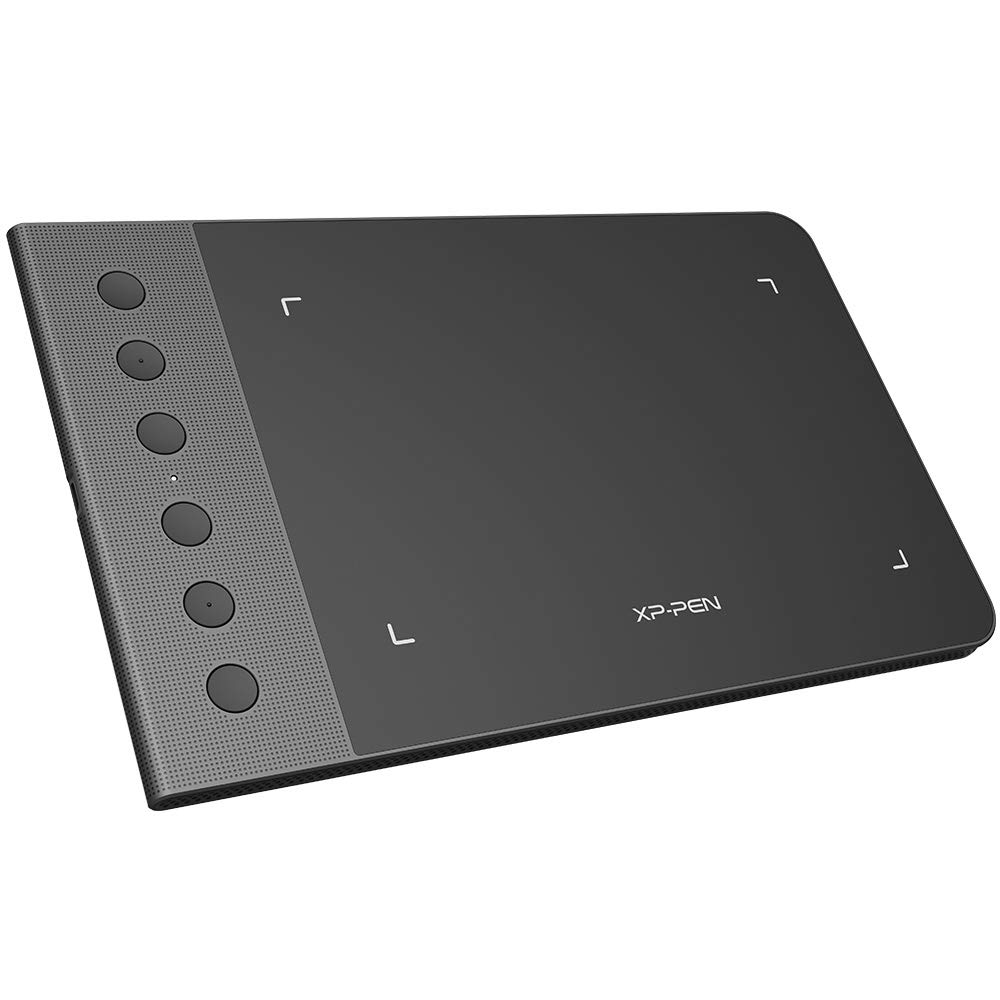
✍️ Elevate your digital art game—precision meets portability in one sleek package!
The XP-PEN StarG640S is a compact, ultra-slim drawing tablet featuring a 6.5x4 inch active area and 8192 levels of pen pressure sensitivity. Compatible with Android (6.0+), Mac, Windows, and Chrome OS, it supports seamless multi-platform creativity. The battery-free P05 Passive Pen ensures uninterrupted use, while 6 customizable express keys optimize workflow. Designed for both right and left-handed users, it’s a versatile tool backed by a one-year warranty and lifetime technical support.












| ASIN | B07DNG37X7 |
| Best Sellers Rank | #581 in Computer Graphics Tablets |
| Customer Reviews | 4.5 4.5 out of 5 stars (2,299) |
| Date First Available | March 4, 2016 |
| Is Discontinued By Manufacturer | No |
| Item Weight | 1.21 pounds |
| Item model number | StarG640S |
| Manufacturer | XP-PEN |
| Product Dimensions | 10.2 x 6.3 x 0.04 inches |
E**E
Pretty good!
I had another tablet from another brand before which didn't have a battery-free pen and I can say this is like the best feature! It's super cool not having to worry about the corrosion from the battery if you leave the pen some months without use. It works like a charm, the area is very adequate, I don't feel like I run out of space when drawing, some minor cons on the overall product are. 1- It gets scratched, very scratched after some time, but this doesn't affect the usability, it still performs as new and sensibility is the same, it's just some visual stuff. 2- The driver interface could be a bit more user friendly I think. I think these are the only cons, as you see, pretty small stuff which doesn't really affect how you draw on it. I've been using it for a year I think now, and wanted to write a review just now. Worth the money!
M**E
good drawing tablet
love the graphic tablet and is good size and easy to use and it has good sensitivty and look great
N**A
It’s a great tablet but....
It’s amazing to draw on especially for beginners but what can I say.... it drags and it’s so fking annoying if I draw for to long it just starts dragging itself for absolutely no reason and in this drag you cannot control the pen and the only way to get it to stop is to restart my laptop otherwise it’s great awesome respond speed it’s very smooth and has a big surface to draw on it feels a little weakish sometimes but I can’t get over the annoying drag otherwise this tablet would be perfect
H**E
Stop squiggly/wavy lines now with this!
I've been on and off with drawing/painting. Growing up, I always took art classes and as long as the assignments didn't bore me, I did well. Out of school, I didn't do any art for nearly a decade, until I discovered Art Academy on Wii U. I followed the Art Academy series until Nintendo shut down Miiverse. I moved to Discord for sharing art with friends, and discovered Ibis Paint X. I really like Ibis, but there's been one issue haunting me. Any time and way I try to draw diagonal lines, the software makes the lines squiggly, or wavy. I'm not going to lie and say my hand is completely steady during drawing, but the waviness of diagonal lines was horrible. As time went on, I drew less and less, hating the fact that any line that went diagonal, even a curve, would get wavy. I know this happens to others, I've read about it on the Internet. I've spent the last half year trying different ways to resolve it. Different tablets, low end and high end, on different versions of Android. Different styluses, passive and powered. ABSOLUTELY NOTHING HELPED. I even tried to reach out to the makers of Ibis Paint X for help. They tried, but couldn't. To shorten the story a bit, I somehow stumbled across this tablet, as I looked for alternatives other than dumping $550 on a Galaxy Tab S6 or buying a new PC tablet and software to draw on my laptop. For only $40, THIS STOPPED MY WAVY/SQUIGGLY LINE PROBLEM!! You might be saying, ONLY $40? To draw on a tablet? That's a lot! Remember, I was about to cough up for a high end Samsung tablet, which I don't really need, or a PC tablet for my laptop, which can't be moved since I use it for recording music. So for me, this little guy was perfect. I apologize for my long story, but that's how stoked I am to have found a solution to my dilemma. Now, onto my impressions about this tablet. Obviously, I don't have any issues with wavy lines using this. As if writing this, I've only used this with my six year old Huawei tablet, which is running Android 7.0, but I have a couple of other tablets to try this out on. The tablet was plug and play. I connected it to my Huawei, started Ibis, and started drawing. That easy. For Ibis, I don't see an option to use the four shortcut buttons on the tablet, which is a bit of bummer but doesn't upset me. You have a short list of presets to assign to the two buttons on the stylus, which feels good in my hand (I'm a lefty, and wear a size 9 Large glove). Using this tablet causes a PC style arrow cursor to show on my tablet screen. While some may not like it, I do, since the tablet tracks the stylus even when you hover the stylus tip very close to the tablet without touching it. It's easy to see where you're going to touch down. I intend to update this review as time goes on and I get to spend more time on this, on different devices. I'll have to get some screenshots of the problem I described in my story as well, so others can see the difference this makes. For now, I am ecstatic about this device and hope it lasts me for many years! Back to art I go! UPDATE: I've added some screenshots to this review and will share my experience having had this tablet for a couple of years now. Four out of the five screenshots are original art by me that was done using this graphics tablet. Take a look at the screenshot with the three pairs of lines. This is an illustration of the issue that this tablet fixed. The first set of lines labeled "ruler" were drawn using Ibis Paint's ruler function, which forces perfectly straight lines. The second set of lines illustrates the issue I was having. See how wobbly the lines are? I won't lie and say I have a perfectly steady hand, but this wobble in my lines is what made me stop doing art for so long. Finally, the third trio of lines at the bottom were drawn by me using this tablet. Again, you can see they aren't perfectly straight but they are much less wobbly than lines I drew via a stylus directly my Huawei tablet's screen. I've done A LOT of art using this tablet and have used up four stylus nibs. While this tablet's surface looks horribly scratched and scuffed, and has seen some moderate abuse from me taking this along with a Dragon brand tablet to work to doodle on breaks, it's drawing surface feels smooth to the touch and it has worked with every single tablet and PC I've connected it to. As mentioned in the initial review, I have a laptop that basically is living as a desktop PC. Said laptop is connected to a 32" TV, so it kinda felt like I didn't have enough space to move on this tablet when I connected it to the laptop. In the end, I wound up getting a bigger tablet from XP-Pen, which I'm very happy with as well and keep as a dedicated surface for my laptop. All in all I'm still very happy with both of my XP-Pen tablets, and am very happy that despite the heavy use and occasional abuse, this particular tablet still works like a champ!
R**R
Great start up tablet!
I was in the market for a entry level pad for casual use and with the overwhelming amount of options in the market it came down to bang for the buck. After some research I narrowed it down to the g640s. I was pleasantly surprised with the build quality and functionality of the unit. The driver app is relatively simple but it can be quite complex. It also comes with additional nibs which is also good. My only complaint is the lack of a usb c. Overall, i'm happy with the device and would recommend it.
S**Y
Great for Notes in Class, Highly Recommend
Pros: - never need to charge - portable - Affordable - Buttons are awesome for shortcuts - Used with One Note it's great for notes in class - Plug n play with no driver installation Cons: - Tracking surface isn't crazy durable but it's definitely good enough - Sometimes stops tracking properly and needs to be unplugged and plugged in again Overall its a great tablet and perfect affordable way to take digital notes on a mac or other nontouchscreen laptop in class. Highly recommend!
A**R
Good tablet, but drivers are absolutely garbage
None of the drivers from XP-PEN's website are working properly for this. Exporting config simply doesn't work, so on each computer boot up I have to re-do my settings. Then I unplugged it, and now the driver doesn't discover it at all, no matter which port I try. Funny thing is Windows actually recognizes this device by name, but the stupid driver does not.
N**L
Great so far - didn't rate "battery life" because it doesn't apply to the product, it's powered by usb and the pen does not require a battery unlike my previous Wacom tablet which became a massive pain in my rear near the end of its life. Product is as described, very sensitive and pressure differentiation takes some getting used to but is great for sketching. Driver install seems to have caused a minor issue with my system. Since installing, whether or not the tablet is connected (just having the driver installed), my system will behave as if it is constantly receiving repeated right-arrow inputs until I tap one of the arrow keys, then it goes away. This needs to be done once every system boot, but my PC runs nearly 24/7 and as such this poses no real issue for me. Driver/software is otherwise pretty straightforward, and allows for custom profiles. I currently have 3, 1 for illustration and vector software, 1 for Osu! gameplay and 1 for general use. The pen on the 640S has a textured gripping area, an improvement considering by and far one of the biggest complaints about the 640 seems to be that the pen had no grip and would slip out of the hand easily. It's not extremely textured though, to be transparent - it's just slightly grippier than the rest of the pen body. It has yet to fall out of my hand, it survived 2 hours of Osu! with sweaty hands, I naturally hold near the flared tip of the pen and have had no problems with grip. Then again, I'm a pleb so those playing more intense/competitive maps may find the grip insufficient. XP Pen is not stingy with their nibs either, including what looks like somewhere between 15-20 nibs with the product. Nice! Warranty is extensive, although I'm one of those people who probably won't enroll for a few reasons which I'll refrain from bothering with. It's great that it's offered at this price though, as a show of confidence in their product. While the tablet itself does not feel military grade durable, you'd be insane to expect that at this price point. I'm very satisfied with the apparent build quality and feel like it will last long emough to pay for itself in use. It's very lightweight but sits firmly on flat surfaces due to the rubber feet on the underside. It doesn't seem to be built to take any sort of abuse, just take care of your belongings and it should be just fine. As with most tablets lacking screens, the surface will eventually show visible signs of wear where the pen makes contact with the top, but it's no complaint. Only way I can see avoiding that would be to spend $350+ on a screen tablet with gorilla glass or equivalent, but that's not what this product is competing with. With the 640S (this review to be clear, as the original 640 reviews are mixed in) the usb input is a 90 degree angled cable, which is a massive improvement over the straighf-out style of cable input. The customizable buttons feel quite cheap/weak/brittle, so I wouldn't go mashing on them hard. They do work well though, particularly useful when mapped to brush swaps and tools like smear, blur, polygon/line tools and eraser if you don't enjoy using the pen button for erasing (I really don't). Also included is a little pen holder tab which can be stuck to the underside of the tablet (or anywhere you want, really) and the pen can be slid through the protruding loop of material to be held in place. I installed mine so my pen attaches alongside the far edge of my tablet. The pen does become inactive when it is raised roughly 3/4" or more from the surface, so those who have sporadic sketching habits will have to adjust, and those Osu! players who prefer the hover technique to dragging will probably need to adjust to the range for a little while. It took me about 20 minutes to get used to it, and it feels SO much better to me to play Osu! with this than with my mouse. I've officially converted for good after 2 days of use. Another reviewer recommended using an open source tablet driver found on Github as oposed to XP Pen's, and after my little hiccups with the official driver on my system I also plan to switch and try that driver to see if it resolves my minor issues. I strongly recommend against windows built-in driver for tablets, I just haven't had any satisfaction with it between 3 different brands/models of tablets and either official or open source drivers are almost always superior. For what I paid, I'm extremely pleased. Beats my previous wacom tablet in literally every regard, if it lasts long enough I'll be switching to XP Pen for all of my future needs. It's good for sketching & illustration, plays well with Osu!, and just plain gets the job done at a very attractive price. There are always more premium options, but there's some really great bang-for-buck in this product and I'm pleased.
S**A
Mesa x-pen é excelente principalmente para iniciantes e a caneta vem com 20 ponteira. Não precisei pagar taxa.
ا**ي
جيد
O**R
Me sorprende que no haya tantos análisis de la tableta por parte de artistas. Que los botones estén en el lateral ayuda con una mejor ergonomía que si estuviesen en la parte de arriba y las dimensiones del área para dibujar no sientes que te falte espacio para trabajar. Vengo de usar una pantalla grande de dibujo Huion GT-156HD V2, y al contrario de que se piense que es un retroceso a mi flujo de trabajo, es un gran avance para mí, además, evita el cuello de camarón por dibujar en la pantalla, aunque este reclinada. Configuren la tableta bien, ya que al principio no podía hacer clic secundario con Clip Studio y era solo deshabilitar el windows ink solo en esa app. Con el lápiz: - Uso un botón para cambiar el grosor del pincel y como clic secundario cuando selecciono una capa (Alt + Ctrl + Clic derecho) - Uso el segundo botón para mover el lienzo (Barra de espacio + Botón izquierdo) Botones de la tableta: - Solo uso 3 para Clip Studio: Shift, Ctrl y Alt. - Los otros 3 los uso para acciones secundarias como cambiar de pestaña. El resto de las herramientas para la app uso el control oficial de Clip Studio. Puedes configurar que cada botón de la tableta y lápiz funcionen diferente para cada programa. Hasta ahora solo presenta un error con OBS, cual obedece SOLO SI NO está seleccionado el programa, pero no presenta mayores complicaciones. La cinta para sujetar el lápiz para que no se pierda se desprende al poner el lápiz, hay que reforzarlo. Lo recomiendo definitivamente.
S**R
An epic tab for beginners like me. Feels pretty nice while drawing The customizable buttons are very much handy as well The only thing I didn't know as a beginner is that the scratches become visible on the surface of the tab once u use it. Ig it's the same for other tabs too so I should avoid pressing too hard even tho it got biggie pressure sensitivity Also I use krita for drawing on windows. It a free software and works very well (just throwin it here for anyone who's in need)
Trustpilot
Hace 3 semanas
Hace 1 semana