We remain fully operational. Our teams are working around the clock to ensure your deliveries continue safely.

Descargar la aplicación


Servicios al cliente
Sobre nosotros
Copyright © 2025 Desertcart Holdings Limited
Descargar la aplicación





Buy anything from 5,000+ international stores. One checkout price. No surprise fees. Join 2M+ shoppers on Desertcart.
Desertcart purchases this item on your behalf and handles shipping, customs, and support to Peru.
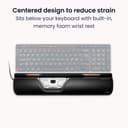
🖱️ Elevate your workspace — precision, comfort, and control in one sleek package
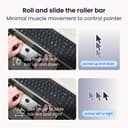
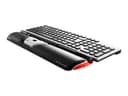
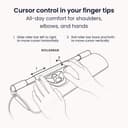
The Contour Rollermouse RED is an award-winning ergonomic mouse featuring a durable aluminum frame, 7 precision sensors, and 8 customizable buttons designed to boost productivity and reduce strain. With adjustable DPI up to 2400, a detachable leatherette wrist rest, and compatibility with both Windows and Mac, it offers unparalleled comfort and control for professionals seeking a healthier, more efficient computing experience.


| ASIN | B00DE83RSC |
| Antenna Location | General Computing |
| Are Batteries Included? | No |
| Are Batteries Required | No |
| Battery Average Life | 3 months |
| Best Sellers Rank | 83,211 in Computers & Accessories ( See Top 100 in Computers & Accessories ) 1,695 in Mice |
| Box Contents | Inhalt: 1 Stück |
| Brand Name | Contour |
| Button Quantity | 7 |
| Colour | RED |
| Compatible Devices | Personal Computer, Tablet |
| Customer Reviews | 4.6 4.6 out of 5 stars (282) |
| Embellishment Feature | LED |
| Enclosure Material | Aluminum |
| Global Trade Identification Number | 00743870006610 |
| Hand Orientation | Ambidextrous |
| Hardware Platform | Personal Computer |
| Item Dimensions L x W | 40.6L x 10.2W centimetres |
| Item Weight | 0.82 Kilograms |
| Manufacturer | Contour Design |
| Model Name | M-RM-RED |
| Model Number | RM-RED |
| Mouse Maximum Sensitivity | 2400 Dots per Inch |
| Movement Detection | Optical |
| Network Connectivity Technology | USB |
| Number of Batteries | 1 Lithium Polymer batteries required. |
| Operating System | Windows, macOS |
| Power Source | Corded Electric |
| Product Features | High Precision Laser Technology, Programmable Buttons, Ambidextrous Design |
| Product Finish Type | Smooth Plastic |
| Product Warranty | 2 year manufacturer |
| Range | 33 feet |
| Style Name | RED Wired |
| Theme | Ergonomics, Computer Accessories |
| UPC | 743870006610 |
| Unit Count | 1.0 count |
R**N
Pain = gone
Okay, so it's expensive, annoying to use (still learning), the click bar is noisy and too sensitive (even on least sensitive setting) but none of that matters. I have used various mice for the last 18 years both left and right handed. Then I switched to trackballs about 6 years ago which gave a small rest bite before the pain in both hands and arms was intolerable (despite switching hands on alternating days). Even so, I've suffered finger, elbow, wrist and shoulder pain for the last 10 years at least. The shoulder pain has got to be especially painful. Endless ibuprofen only took the edge off. One week of using the Re:d and all the pain is GONE. That's why it's worth the 5 star rating. Everything else is meaningless against that fact.
H**N
Great mouse
Truly best mouse for work ever made, I truly enjoy this newest member of RollerMouse family best from the earlier models.
M**H
Excellent ergonomic product, but......
I spend hours each day at a desktop computer, primarily coding and maintaining databases. I am 55 years old and have had issues in the past with wrist and finger problems from repetitive working with a mouse and keyboard and I am always looking out for ways to reduce this strain. I saw this on Amazon and purchased to see if it could further help reduce the discomfort experienced after regular 12 hour days at the computer. First impressions were really good - although the whole set-up is vastly different to using a normal desktop mouse, anyone who also uses a laptop trackpad will find this item very easy to get used to. The build quality is excellent and the overall user experience was really very good. It was immediately recognised when plugged into a KVM switch and worked almost flawlessly on both Windows and MacOS. The buttons are very well placed for ease of use and the rollerbar is smooth and accurate. The scroll wheel is one of the nicest and most fluid that I have ever used. However, there was one flaw that I couldn't get around and ultimately caused me to return this item within 48 hours of receiving. TBH, if the product was much less expensive I may have persevered longer, but a price of slightly over £350 means this is a VERY expensive mouse and needs to be perfect to justify that price. I found on multiple occasions that when scrolling horizontally on either a browser page or a DB management screen, if the scroll was extensive the cursor would suddenly scroll rapidly and completely uncommanded off of the right hand side of the monitor. A few times would have been inconvenient but when this happened multiple times in a few minutes, it became a situation where the product was unusable for me. It is a great pity as it was very comfortable to use in all other scenarios and certainly meant arm and wrist movement was reduced significantly by not having to leave the area of the keyboard every time a mouse input was required. I will keep my eye on this product and hope that in future it becomes more reliable for my particular use-case.
A**N
Takes a bit of getting used to, but very ...
Takes a bit of getting used to, but very effective in spreading the load across the hand. You can use this in combination with a mouse, but I dumped my mouse to ensure I'm adjusting to the new system You can click the roll bar, which surprised me. Im actually really looking forward to becoming an expert with this.
D**E
Very good, yet flawed for wide screens
This alternative to a mouse or graphic tablet is flawed if you intend to use it on high-resolution screens, or multi-monitor setups. The reason being the relative x-axis positioning used by the device. The ingenious roller can only travel 10cm, which, on my 27" iMac just covers roughly half the width of the screen. To "access" the other parts of the screen (either left or right), the RollerMouse uses a technique whereby you bump into its left or right limit, and then the mouse carries on, as if gliding on ice. This may be OK on small horizontal resolutions, like 1024 pixels, or 1280 pixels.. but when you hit 2560 pixels (my iMac), or even worse, when you have a dual-screen setup where total horizontal pixels is 4000+, then this solution becomes a pain. What the manufacturer should allow, is for absolute horizontal positioning, like some other mouse alternatives (e.g. WACOM's tablets). The manual of the RollerMouse is very light on details, and doesn't mention absolute/relatieve positioning anywhere in its few pages. I would have given this product 4/5 stars if it could give me absolute positioning, and dispense with the "mouse on ice" hack.
D**E
and is a little better than a regular mouse for pain reduction
I bought this through the keyboard company. It's a massively overpriced product that promises more than it can give. Contour also didn't respond to an email I had about a loose USB connection which caused it to disconnect if i move it around. For the price they ask for it should really be wireless. It is an ok mouse, and is a little better than a regular mouse for pain reduction, but its also harder to make very accurate clicks if you're doing graphic design work or any sort of clicking on things that requires fine control.
H**W
Excellent, intuitive to use.
Responsive, clearly marked, easy to use device, resolving a pain issue from broken bones in hand. Excellent.
D**E
More pain, not less.
This device has managed to give me tennis elbow pains in BOTH elbows.. while in the past, I only had problems with my right (mouse) arm. The mechanism itself is clever, but the buttons present the same problematic click feedback force which, to me, caused me to give up all computing for almost a whole year some twenty years ago. Bottom line: I'm still looking for a mouse replacement that does not cause health problems.
D**N
Great product, high quality, eliminated shoulder pain from desk work
R**5
Il y a un an et demi, j'ai commencé à ressentir des fourmillements dans les doigts, une faiblesse général dans la prise en main (je lâchais les choses que je pensais tenir et me trouvais de plus en plus maladroite). Les mois passant, j'ai ressenti de grosses douleurs aux articulations dans les deux mains le matin au réveil : impossible de fermer les poings avant plusieurs minutes. J'ai consulté et on a suspecté de l'arthrose ou de l'arthrite mais les examens étaient négatifs. Suite à une visite à la médecine du travail, un simple petit coup de marteau à réflexes sur mes poignets ont suffit pour diagnostiquer le syndrome du canal carpien. J'ai alors essayé d'analyser les gestes répétitifs pouvant en être la cause : l'utilisation de la souris toute la journée au travail. J'ai commencé à porter des attelles la nuit ce qui est reconnu pour soulager et j'ai acheté une souris verticale. Les attelles soulageaient la douleur au réveil mais elle était toujours là. La souris verticale ne semblait pas avoir de gros impact. J'ai décidé d'investir dans une souris ergonomique : la roller mouse. Dernière tentative avant d'envisager de reconsulter car les symptômes s'accentuaient et j'ai dû renoncer au tricot, au jardinage, au coloriage, etc... car tout cela participait à amplifier la douleur. J'ai utilisé la Roller Mouse durant 3 semaines avec les patins pour surélever le clavier : pas d'amélioration, voire plus de douleurs qu'avant. J'ai fini par ôter les patins. Et en deux semaines, plus de douleurs le matin au réveil dans les doigts. Je continue de porter les attelles la nuits mais j'ai retrouver de la force, plus de maladresses, et plus de douleurs. J'ai repris le tricot et le coloriage, pas plus de douleurs ! Une vraie libération ! Alors si vous souffrez du canal carpien et travaillez beaucoup à la souris, l'investissement n'est pas anodin mais pour moi les résultats ont dépassé mes espérances !
A**R
Il est tres intéressant d'apprendre a travailler avec la rollermousse. J'ai eu d'une semaine d'adaptation, mais j'apprecie de pouvoir travailler avec les deux mains et faire en sorte de diminuer les tensions du bras droit habituellement tres sollicité.
D**J
Ich arbeite den ganzen Tag am PC, insbesondere muss ich nicht nur schreiben sondern auch sehr viel mit der Maus markieren, kopieren und einfügen und vieles geht nicht mit der Tastatur, d.h. ich brauche eine Maus unzählige Male am Tag. Im Laufe der Zeit hatte ich große Probleme in der rechten Schulter und im Nacken, sodass ich mich entschloss mir das Roller Mouse Pad anzuschaffen. Der hohe Preis war zunächst etwas abschreckend, aber auf youtube gibt es einige Berichte und die allermeisten waren positiv. Jetzt sind ca. 4 Monate vergangen, sodass eine Rezension gerechtfertigt ist. Angeschlossen ist es innerhalb weniger Sekunden, Windows 7 erkennt es sofort - habe keinerlei Probleme mit der Installation gehabt. In den ersten Tagen war die Umstellung relativ groß im Vergleich zu einer konventionellen Maus und Eingewöhnung, bzw. eher Abgewöhnung nicht spontan mit der Hand zur Seite zu fassen, nicht ganz einfach, aber man gewöhnt sich sehr schnell an den Komfort vor allem der Direkttasten copy und paste. Auch das Scrollrad ist genial: Damit kann man sehr schnell auf allen Seiten scrollen (auch im web). Die eigentliche Mausbewegung wird durch die "Stange" durchgeführt, sie funktioniert tadellos; auch wird mit einem Druck auf diese ein Klick (oder mit zweimaligem Drücken ein Doppelklick) durchgeführt.Zusätzlich gibt es aber auch eine Direkttaste für den Doppelklick. Die Tasten auf dem Pad sind ausreichend groß um sie immer sicher zu erreichen. Dadurch, dass ich mit beiden Händen die Roller Mouse bewege, bin ich im Arbeitsfluss gefühlt schneller als früher mit einer normalen Maus. Die Handballenauflage ist angenehm weich und man kann sie für die eigenen Bedürfnisse (Höhe) durch die Anpassungsstücke, die an der Tastatur befestigt werden können, einstellen damit man die angenehmste Höhe zur Tastatur hat. Anfänglich hatte ich das Gefühl nicht ganz so präzise eine Stelle im Text zu finden, ich bildete mir ein, dass es mit einer normalen Maus schneller und genauer wäre und habe spaßeshalber mal für einen Tag meine alte Maus angeschlossen. Nein, das Treffen eines bestimmten Punktes auf dem Monitor war mit der alten Maus weder schneller noch genauer. Als Fazit kann ich sagen, dass ich äußerst zufrieden bin und meiner alten Maus keine Sekunde nachtrauere. Meine Schulter- und Nackenschmerzen sind nach einiger Zeit verschwunden. Der hohe Preis ist das einzige Manko, aber wenn ich bedenke wieviel ich an Cremes und Wärmepads für meinen Nacken an Geld ausgegeben habe, in Relation verschmerzbar. Ich kann die Rollermaus jedem empfehlen der viele Stunden am PC arbeitet, viele Mausbewegungen hat und Schulter/Nackenschmerzen vermeiden möchte.
S**A
Before I start the review, you will have noticed that fellow reviewers aren't sure how to clean this device. Probably because the information on how to do that is buried in Contour's (the company behind this product) website in a FAQ support page. That along with the .pdf manual for this device to disable things like tap to click. More on that later, right now I'mma show you how to take it apart to clean it. First what you will need is preferably two hands. Secondly, have at least one "UltimateCloth". It is a cloth that uses a material called Mirafiber Fabric that is more fine than "microfiber cloths". It also only uses water to get itself damp so no need for alcohol or other harsh cleaning solutions that will damage this device. Those UltimateCloths can be bought here on Amazon. Here's a basic set of them: https://www.amazon.com/Ultimate-Cloth-Mirafiber-EcoFriendly-Multi-Surface/dp/B016ARTAWK/ref=sr_1_5?dchild=1&keywords=ultimate%2Bcloth&qid=1600529808&sr=8-5&th=1 They're a little bit expensive but they can also be reused and machine washed, even bleached if necessaary. Just get them, it will make this way easier. Now that you have those things prepared, here's what you do. I have the photos of what to do attached to this review, so reference those as I summarize what is done in all 27 of said photos. Firstly, you see those two black end caps at the end of each side of the rubber roller bar? Those can be pressed inwards towards the rubber roller bar which will cause them to click, and then they can be carefully removed. Set the two end caps aside at their respective ends so you don't mix them up later when putting the device back together. Afterwards, the metal bar that the rubber roller bar rests on top of has two magnetic pins at each end of the metal bar. Those hook/rest into a metal magnetic slot at both ends. Carefully apply enough force to remove the metal bar from the magnetic slots on both sides. WARNING: There should be a ribbon cable to the left opening of the metal bar. This can break if you aren't careful. So again, carefully apply force, don't go full caveman mode on it! After the metal bar is removed, it is now possible to slide off the rubber roller bar off the metal bar. Again, figure out a way to remember which way the rubber roller bar was so you don't get confused later when reattaching everything. At this point, there's an extra option you can do, and that is to clean the metal gutter that holds the metal bar and the rubber roller bar. That gutter tends to gather gunk and other stuff into there, so if you want to clean that you can. However this mostly won't affect the performance/smoothness of the RollerMouse RED. This is simply for cosmetic purposes. Hence why it is optional. With that out of the way, and with everything taken apart, set the pieces aside and take your UltimateCloth. Get it fully soaked with water. Preferably under a sink since that would be the easiest way to do so. Once it is fully soaked, twist the UltimateCloth to "wring it". This is to get rid of a lot of the mositure. Keep doing that tightly enough that no more water drips out of the cloth. Now you should have a "damp" UltimateCloth that isn't dripping water everywhere. WARNING: If you notice from the pictures, in the center of the metal bar are the sensors that the rubber roller bar uses. While cleaning the metal bar in this next step, be sure to not touch those! With your newly dampened UltimateCloth, you basically just wipe the metal bar. Basically jerk it off is what I'm saying. While avoiding the sensor in the middle. However the metal underneath the sensor is fair game. This next step is also optional but this time this does effect performance if you want to squeeze that extra bit of smoothness out of this device. Personally I do it because it isn't too hard to do. Take your dampened UltimateCloth, twist one of the ends so that it is less floppy and easier to aim, then take that twisted end and shove it into the rubber roller bar. Keep twisting the cloth inward of the rubber roller bar until the UltimateCloth's twisted end can be grabbed onto through the other end. Once the UltimateCloth is sticking outside of both ends, you basically want to "floss it" so to speak. Take either end of the UltimateCloth sticking out, and pull it, then pull the other side of the UltimateCloth, and so on. You can do this as many times as you'd like. I'd say 4 sets of pulls on either side will do the trick. Do more if you'd like. Once you're done with that optional step, pull the UltimateCloth out of the rubber roller bar. Now that your components are cleaned, you're reading to put it back together again. Firstly, take the rubber roller bar and slide the metal bar back on into it. Make sure the rubber roller bar doesn't slide to either end as you're doing this. Secondly, take the left side of the metal bar, find those two magnetic pins and hook them into the magnetic metal slot to the left of the RollerMouse RED's base. Thirdly, do the same with the right side. Double check to make sure everything is probably hooked into their respective slots. Fourthly, reattach the black end caps you set aside early on. Now your RollerMouse RED is fully cleaned and should feel absolutely STELLAR again! Seriously though, I forget how insanely smooth this thing is every time I'm done cleaning it! ===== = ===== With that process out of the way, what about the actual usage of the device? What the RollerMouse RED essentially is, is a combination of multiple types of mice in one chaotic jack of all trades device. I've used trackballs, trackpads, mice, trackpoints, and drawing tablets, and this device takes aspects of all of those into one comprehensive device. If that sounds extremely chaotic to you, it is because it is. So while there is a learning curve, it is also surprisingly lower than you'd might expect. As for HOW to use it is where things get very fun, and very interesting very fast! That's because there are many different ways to use it based on what parts of your hands you wish to rest. For example, you can do the traditional way, which is to have one hand on the keyboard, and one hand (usually the main three fingers, and having the pinky/thumb manage the mouse buttons) on the RollerMouse RED. IMPORTANT: PRO TIP: According to the electronic manual, you want your keyboard's space bar positioned higher than the RollerMouse RED. If your keyboard is extremely thin, there should be two plastic keyboard risers in the box to prop your keyboard up to the necessary height. This prevents any accidental mouse movements when typing. PRO TIP 2: Contour's website also has software so you can rebind the mouse buttons on your RollerMouse RED along with profiles for specific applications of your choice. So if the default button functions are difficult to use, feel free to rebind them. Here's where you can find the electronic manual and the software to rebind your buttons: https://www.contourdesign.com/product/rollermouse-red/ Its at the end of the page in the "Downloads" section or something similar. The electronic manual also teaches you how to change the DPI (basically the mouse speed of the RollerMouse RED), how to disable tap to click, along with other things. Just download it so you can refer to it if you have any of those basic questions. Anything more specific can be found on Contour's FAQ page or their support page. Which can be found by clicking "Support" on their website, then clicking "Troubleshooting Solutions". With those major tips out the way, back to the review! Even with just traditionally using the RollerMouse RED, due to how its positioned, you can also switch hands at will. So unlike with say a trackball where you need to reposition the entire thing onto the other side of your computer set up THEN start using it with your other hand, with the RollerMouse RED you "just do it". Another way to use it is with your thumbs while the other 8 fingers on your (hopefully) two hands are managing the keyboard. For example, having your right thumb managing cursor control, while your left thumb manages the mouse buttons. This is great if you need your hands on the keyboard at all times and don't want to move your hands excessively. Great for office work to avoid RSI! And again, you can swap thumbs on a dime should one of them get fatigued from cursor control and vice versa. So you technically have a "finger" and a "thumb" mouse at the same time, along with having a "lefty" and a "righty" handed mouse at the same time. The ability to "just do it" as you see fit will take some time to get used to. Especially if you want to use your thumbs to control the mouse for cursor control. With some practice, you can fluidly change between these positions as you wish to prevent RSI from doing the same motions with the same hand over and over again. Right hand is tired? Just use the left! As for DPI/mouse-speed, it can go pretty high if you want! It has a range of as low as 600 DPI, all the way up to a meaty 2400 DPI! But what happens if you reach the end of either side of the metal bar with the rubber roller bar? What ends up happening if that the cursor will automatically drift horizontally in that direction. So if I have 3 monitors, and I'm on the left most one, if I keep moving the rubber roller bar to the right until it reaches its end, the cursor will "drift" to the right until I stop. You cannot aim it up or down while the cursor is drifting. As for things like gaming cursor drift, the RollerMouse RED surprisingly has none! I played osu! with it and no matter how long I played that game, the rubber roller bar always kept its position relative to the cursor! A way to test if your mouse has cursor drift (which is common if it does), is to spin your cursor in a circle. Try to maintain that circle in the center of the screen. What will end up happening is that your mouse will quickly get out of position relative to the cursor. Some gamers also call this "mouse drift". So I repeat: The RollerMouse RED DOES NOT have mouse drift! Now what are some things I don't like about this device? Well take one look at the price. While it is basically several mice in one, a Swiss Army Knife of mice so to speak, at the end of the day, several hundred USD is still several hundred USD. Its EXPENSIVE. The second thing I don't like is that cleaning it, as you've seen, while not "difficult" per say, it does take some concentration and can be time consuming based on how careful you're being, and with how expensive this thing is, you really want to take your time with maintenance/cleaning-it! Thirdly, the software to bind your mouse buttons has a specific requirement for how you bind them. There should be three "main buttons" on the RollerMouse RED. Labeled as "left click, right click, and double click" respectively. You need to have one of them binded to the actual mouse function of left click or right click. Afterwards, you can bind you mouse buttons how you wish. But you cannot bind left click on the "copy" button for example to have it act for the primary requirement. That is because with the profile feature, the "non-main buttons" are what you bind to each profile. That means if I want the copy button to open a map in a game, I make a profile, bind that button to the respective key that opens the map, apply it to the .exe file of the game, and now when I open that game, that profile should automatically be activated with that layout. So yeah, while it is annoying to lose out on two buttons on the primary mouse button cluster, it does make sense in context as to prevent the user from unbinding essential mouse buttons. It would be awkward to accidentally unbind left click and now you can't use your mouse. So this mouse does have fail-safes on that front. So that is more of a nitpick on my end. The other thing I don't like about it is that it only works with "orthodox keyboards". Essentially the typical default rectangle we all know and might love/hate. This means you cannot use any super specialized keyboard that are "ergonomic" or have a built in wrist rest since the RollerMouse RED in it of itself is a wrist rest. (Or a armrest if you bought the arm rest attachment) Speaking of wrist rests, there's three sized, small (the default most of the time), the "pro" or "plus" variant which is the large size, and finally the arm rest. It is meant for things like standing desks but I just find it more comfortable in general so I just use that one all the time. Continuing on with the cons, the coating on the mouse buttons aren't very good. You can even see the finish's rubbed off surface in the photos of this review! (Context: The year i got this device, I played a game called Terraria a lot which uses the left click a lot. The two buttons that "faded" finish wise, those two I binded to left click hence why their finish is in particularly scuffed condition!) The final thing I don't like about it, is that the one I got is a wired one and the wire for the RollerMouse RED is disturbingly thin. For a device THIS expensive, I wouldn't mind the wire being a bit thicker because otherwise it looks alarmingly fragile. So I wouldn't recommend this for travel. They do sell a wireless version however. So if this does seem like something you want to try out on the go, go with the wireless version so you don't break the awkwardly thin wire on the wired version! With all those negatives and the rest of the review out of the way, would I recommend it? For most people, probably not. This is a incredibly niche product for people who want the jack of all trades (master of some) mouse. For most people, something like a "X-keys L-Trac Trackball" would be a more orthodox option and significantly easier to get into. Put a high quality pool ball into it and the smoothness will also be roughly on par with the RollerMouse RED. With something like the RollerMouse RED, it is kind of hard to visualize how it would "be like" in the day to day. Contour does however offer a 30 day trial program on their website that allows you to try this device out for free plus or minus shipping and handling. And if you like it, you can keep it. If not, you can send it back. With how expensive it is, and if you have any doubts on its usefulness on your day to day, I HIGHLY recommend the 30 day trial so you don't just waste almost $300 USD on something that might not fit your unique needs. But overall, for its intended niche, it is a very excellent product. A almost unreal amount of smoothness (when clean), extremely great at preventing RSI with how easy it is to switch hand styles on the fly! Many many small details to really tailor it almost perfectly to how you want it! The materials are very solid where it counts! The rubber roller bar has a great grip on your fingers so you don't have to worry about your hands falling off! Very ergonomic in a way that is more easy to use by a large range of hand types instead of those hyper lazer focused specialized mice which only works one way, and then you'd have to buy more mice to fit the other hand/thumb! Not with this mouse! Its an all in one stop for ergonomics as far as mice goes! It isn't flawless, but it is in a niche all of its own. Finally, while there are multiple versions of RollerMice on the market. I do believe this one, the "RollerMouse RED" is the best of them. The other ones seem to have tracking issues whereas this one is basically a gaming grade sensor, and due to the lack of mouse drift, arguably better than "gaming grade sensors"! Other RollerMice also have issues with fingers unable to probably rest on the rubber bar as user's fingers tend to fall off the device. The RollerMouse RED's rubber roller bar has moderately sized rubber dimples that have a firm but not excessive grip on your fingers. So while the RolerMouse RED tends to be, on average, about $30 - $50 (USD) more expensive than other RollerMice, honestly just do it. You're already spending almost $300 on these things, you might as well get the best one out of all them!
Trustpilot
Hace 2 semanas
Hace 2 meses