We remain fully operational. Our teams are working around the clock to ensure your deliveries continue safely.

Descargar la aplicación


Servicios al cliente
Sobre nosotros
Copyright © 2025 Desertcart Holdings Limited
Descargar la aplicación


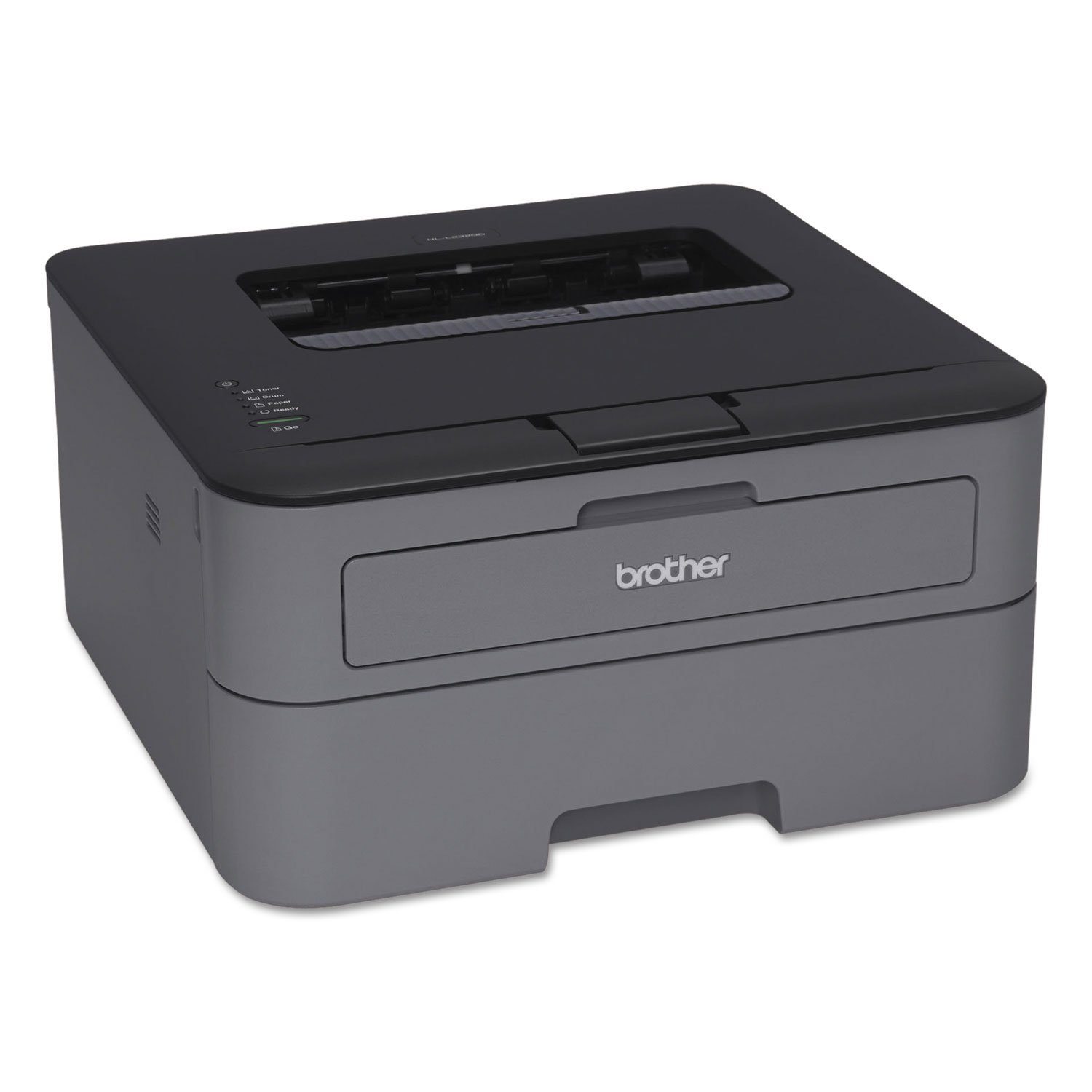
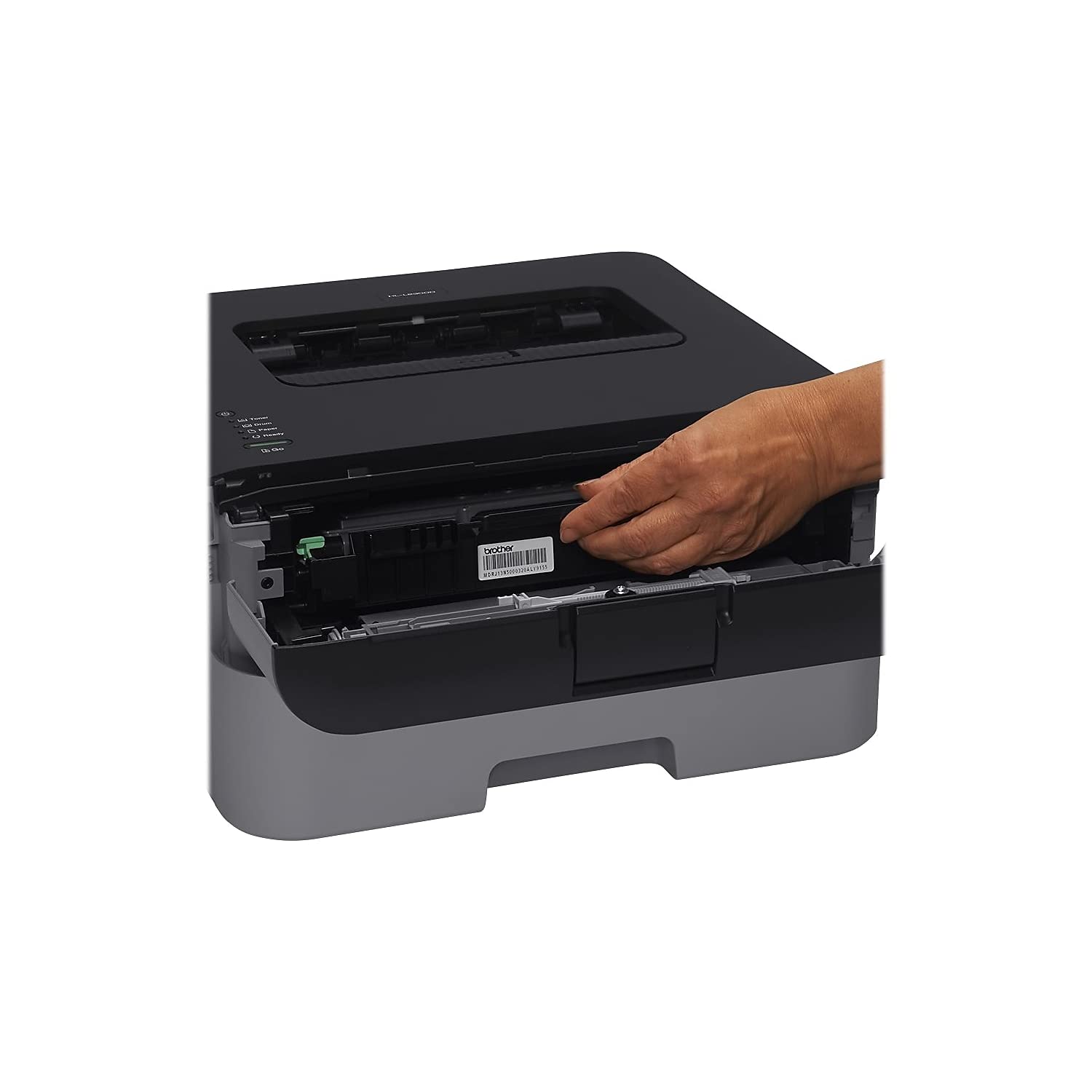
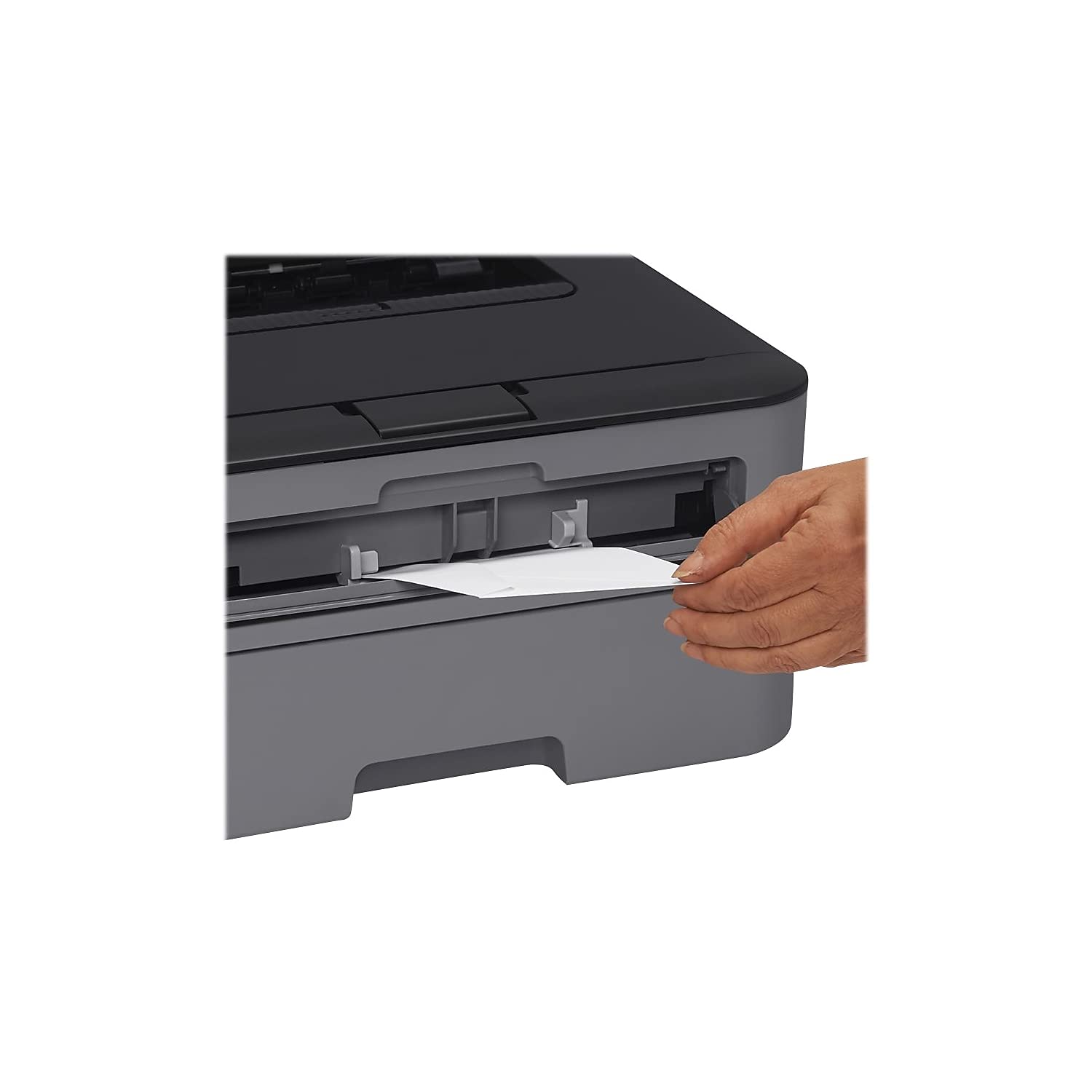
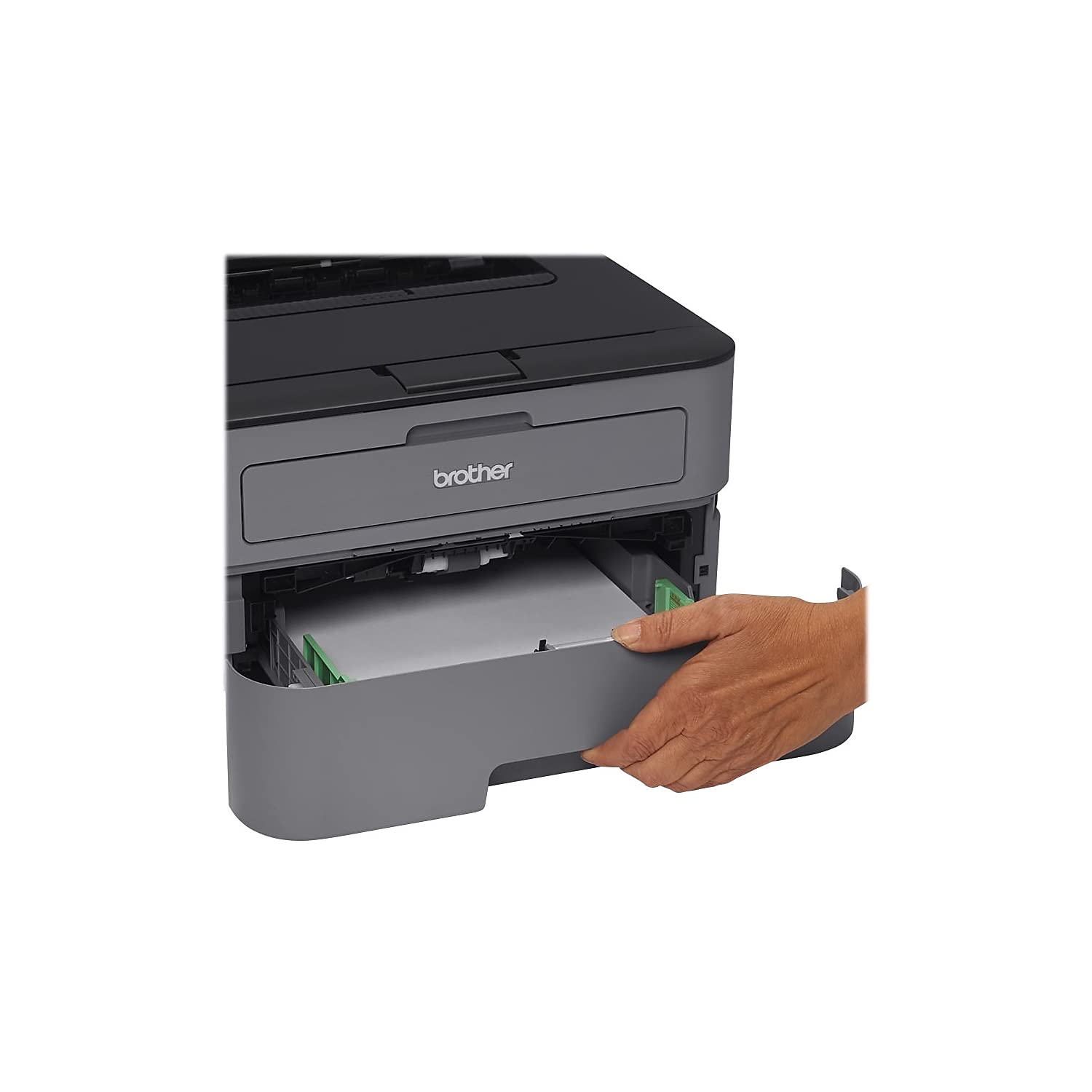
🖨️ Classic reliability meets modern efficiency — print smarter, not harder!
The Brother HL-L2300D is a compact monochrome laser printer designed for home and personal office use. It delivers fast printing speeds up to 27 ppm with sharp 2400 x 600 dpi resolution. Featuring automatic duplex printing, it reduces paper waste while maintaining professional quality. Connectivity is via USB 2.0, ensuring straightforward setup without wireless complications. With a 250-sheet capacity and manual feed slot, it handles diverse media types including envelopes and letterheads. Trusted for its reliability and ease of use, this printer is a no-nonsense workhorse built to keep your productivity flowing.
| ASIN | B00NQ1CLTI |
| Additional Printer Functions | Print Only |
| B&W Pages per Minute | 27 ppm |
| Best Sellers Rank | #115,941 in Office Products ( See Top 100 in Office Products ) #151 in Laser Computer Printers |
| Brand | Brother |
| Built-In Media | Laser Printer |
| Color | Monochrome |
| Color Depth | 1 bpp |
| Color Pages per Minute | 27 |
| Compatible Devices | Laptops, PC |
| Connectivity Technology | USB |
| Control Method | App |
| Controller Type | Android |
| Customer Reviews | 4.4 out of 5 stars 11,061 Reviews |
| Display Type | LED |
| Dual-sided printing | Yes |
| Duplex | Automatic |
| Global Trade Identification Number | 00012502638780 |
| Hardware Interface | USB, USB 2.0 |
| Ink Color | Black |
| Item Dimensions D x W x H | 14"D x 14.2"W x 7.2"H |
| Item Type Name | Brother HL-L2300D Mono Laser Printer |
| Item Weight | 15 Pounds |
| Manufacturer | Brother Printer |
| Maximum Copy Resolution Black and White | 2400 x 600 dpi |
| Maximum Copy Speed Black and White | 27 ppm |
| Maximum Media Size | 8.5 x 14 inch |
| Maximum Print Resolution Black and White | 2400 x 600 dpi |
| Maximum Sheet Capacity | 250 |
| Model Name | Old: HLL2300D |
| Model Number | HLL2300D |
| Model Series | HL-L2300 |
| Number of Trays | 1 |
| Other Special Features of the Product | Auto-Duplex, Double Sided Scanning |
| Output sheet capacity | 250 |
| Paper Size | 1 |
| Power Consumption | 15 Watts |
| Print media | Envelopes, Labels, Paper (plain) |
| Printer Connectivity Type | USB |
| Printer Output Type | Monochrome |
| Printer Type | Laser |
| Printing Technology | Laser |
| Processor Count | 1 |
| Resolution | 2400 x 600 |
| Scanner Type | Photos/Documents |
| Special Feature | Auto-Duplex , Double Sided Scanning |
| Specific Uses For Product | home office |
| Total USB 2.0 Ports | 1 |
| Total Usb Ports | 1 |
| UPC | 012502638780 |
| Warranty Description | 1 year limited |
| Warranty Type | Limited Warranty |
| Wattage | 995 watts |
F**T
It's easy and it WORKS :)
This is a lazer printer using older and similar technology designed by people who use the KISS principle. Older CAN BE better. I used it for a Win7 machine... yes, it needs a chord, but given how many printers are a nightmare to setup to wireless print... I will take a chord and a dvd setup disk any day over that nightmare. GREAT printer. Review for Brother HL-L2300D (NOT the wireless model L2305W) 2023 Tried several other Laser printers before this one. All failed, didn't work with Win7 (even though they said they did), and the mega challenges of setup made them not worth keeping them. With the 'old school' HL-2300D, setup was breeze. Connect the USB/Printer cable, Pop in the CD, remember those? :) run the setup, a few minutes later I was printing. While the L2300D is technically not a wireless printer, you CAN set it up to print wirelessly from other machines. I attached the L2300D on my Win7 laptop, and connected to my home wireless. Set up a home group with the printer SHARED…. and voila! All other machines in my home, can print to the Printer attached to the Win7 laptop… WIRELESSLY. I have the other (Win10, Win11) computers connected to the SAME wireless connection, they download the needed drivers… and it works with zero problems. Some Pros: +Works with Win7 +EASY setup. +Can print wirelessly, although you do have to have the "home" computer that the printer is attached to on, and setup to share that printer on the home group network. +IT WORKS! and produces a quality output. +You will not have brain melt as you would if you attempt to setup other Laser printers Cons: -As with most printers sold by the corporations, the scam is to buy the printer, then overpay for TONER that limits how many copies you get for each toner. (A scam, but as long as monopolies are allowed, it's the game.) -Rumor has it, that how many copies you ACTUALLY get, is different than what is advertized. (given the number of reports on this issue, it is likely true, but I can't say for sure, as I am not going through the hassle to tracking that going forward.) -The chord you need, doesn't come with it, fortunately, you can often pick these up at garage sales / thrift stores, etc for about a buck… or even free. - Had to press the Off/On switch and HOLD it for ~5 sec before printer will turn off / which is odd. -Built in power chord is a negative. -Reports of questionable functionality with Linux… though I guess that if the printer is connected directly to Linux machines they might work fine. (Didn't bother testing this, as I am only needing it for Win machines.) Neutral: As with all printers, things wear out, and there is need for two basic things: more toner (solvable) and a new drum (they often last, but they do need to be replaced sometimes ~5+ years -Most products produced by the Corporate Elite, are designed to malfunction after a time, so you will forced to buy a new replacement. (A common practice) -- I will mention that some printers have a way of resetting the toner counter, AND a way to reset the need to replace the drum… I am not sure that applies to this printer, though I will mention it, just in case one of you gets into that scenario. :) Had a Lexmark in the past, that this worked for, and knowing how to do that, saved needless toner/drum replacements. (Likely the corporations have disabled this feature on new models.) Rating: Fantastic. It works, setup is EASY, and you can print wirelessly if you set your WIN computers up to do that. Compared to the options on the market, cost, and the other Wireless printers that being sold now, this machine is smoking hot, pun not intended. :)
W**E
Excellent Laser Printer
The Brother HL-L2300d is a great little laser printer. Easy to set up and maintain without headaches. I am quite particular about what I buy and use. I read through all the reviews and the FAQs before I decided to go with this printer. First of all, this printer has been out for a few years so it has stood the test of time. This printer allows you to reset the count (or clicks) on the toner cartridge and drum so you can get all the life out of these items. It is easy to set up and get running. The printer doesn't come with a USB printer cable, so just buy one at the same time or most people would have one on hand. To reduce possible problems, use a printer cable that is only 6 ft. or shorter. Problems arise when using long cords with serial data transmissions...just believe me on this. This printer does not allow WiFi. Please understand that most problems that I see people having are with the WiFi connections. Listen to me when I tell you that WiFi, printers, sleep modes, dynamic DNS and overcrowding on WiFi routers do not always go together. Most WiFi printer setups are not ready yet for the typical consumer. It might work for a while, but throw the sleep mode into the mix and then you're in a pickle. It is so much easier to just use a USB printer cable. You may even thank me later. I have Windows 10 and it was easy to install. The Brother support website does a good deal of providing directions and problems solving. There is one part that might throw you off so I will take the time to give you easy directions for Windows 10. Get your printer all ready according to the quick help guide (i.e. remove the packing materials and install the toner cartridge, load paper, install power cord and connect USB printer cable to the printer only). DO NOT turn on the printer or connect the USB cable to your computer yet. DO NOT use the installation CD/DVD that comes with the printer. Go to support.brother.com on the ol' interweb. Do a search on "HL-L2300D". It doesn't need to be in caps, but I did that for clarity. Click on downloads and the website automatically determines what OS version you have installed. At this point say, "How cool is 'dat!" in the same manner as the Crazy Russian Hacker. Start downloading the FULL DRIVER & SOFTWARE PACKAGE. The software will start downloading and then will pause. This is when you plug the USB cable into your computer and turn the printer on. The software will continue to load and install your printer. Now if you did like me, I got too antsy and plugged in my USB cable and turned on my printer before partially installing the software/drivers from the Brother website. This installed a built-in driver which only supports the basic functions of the Brother machine. You just need to back up the process. Have your printer on and connected via USB cable. Go to support.brother.com just as you would in the previous paragraph. Go to the download section and halfway down the page you see a UTILITIES section. Run this uninstall tool to get rid of this basic driver. Now unplug the USB cable from the computer and turn off your printer. Go back to the previous paragraph and get it done right this time. Always use good quality paper especially when printing in duplex to reduce the risk of jams. I picked up some HP Office20 (20#) but am not really impressed by it. It works well but seems a little too translucent. Using slightly heavier (24#) and a better brand will easily fix that. I hope this review helps someone. Please take the time to read all the FAQs, sort through the good/bad reviews before and scour the specifications on the manufacturers' websites before making purchases. It will solve most of the problems people encounter.
G**R
High Quality Printing That Doesn't Empty Your Wallet
I recently purchased the Brother HL-L2300D Laser Printer and it's been a fantastic experience. This printer, embracing the KISS principle, offers easy setup and reliable performance. It's perfect for users like me who prefer simplicity over complex wireless setups. I particularly appreciate its compatibility with older operating systems like Windows 7. Despite not being inherently wireless, I was able to set it up to print wirelessly from other devices in my home, which was a pleasant surprise. Another great aspect is its affordability and efficiency in handling toner usage, though the toner's cost and capacity can be a bit of a downside. The lack of a USB cable in the package is a minor inconvenience, but easily solvable. Additionally, the printer's design is compact, making it a suitable choice for smaller spaces. I've also used the Brother HL-L2305W model, which offers a good value for its price, though it only connects to a slower 2.4GHz network. This model is slightly more challenging to set up, especially for those unfamiliar with printer configurations. However, once set up, it delivers excellent print quality. The printers' performance is commendable, with high-quality prints and the ability to handle various paper types, including cardstock. While they may not be suited for high-volume printing needs, they are perfect for personal or home office use. Overall, the Brother HL-L2300D and HL-L2305W models are excellent choices for those seeking reliable, cost-effective laser printers with easy setup and solid performance. They are especially suitable for users who do not require color printing and prefer a straightforward, no-frills printing solution.
D**L
Super Simple Setup!
This is a basic laser printer that just works. No wifi or bluetooth. Not wireless. Not color. Not a multifunction printer. This is a workhorse printer. Super fast printing speeds. Super fast startup time. I literally just plugged it into my computer, my Windows 10 immediately recognized it, installed the driver. 10 seconds later I was printing. I did install the Brother software but I don't use it. There is no need to. And it's sooo much cheaper to use than an inkjet printer. For example, the starter cartridge is good for about 750 pages. Replacement cartridges are good for about 1500 pages. I bought a 2 pack of cartridges (off brand) for around $25 from Amazon which should last me for a couple years easy. And I don't think they have any issues with drying and clogging up. I've owned two ink-jet printers before and the setup was confusing and took forever. This is a beast and I love it! Now the bad part. For some reason they don't even include the cable to connect to your computer. I could understand that for wireless but this will not work without that cable. Very poor decision on their part. It's a printer to USB type A cable. Docked a star for that. I am including a picture of the cable ends so you get the right one. Unlike what I did and bought a USB to USB, which is wrong.
C**S
Relaible printer, compact, supplies are cheap.
Its reliable. Its quiet. It prints crisp clear text. Duplex works perfectly and I sometimes use it to print envelopes, which just go into the manual feed. It works perfectly with Linux Mint. Its plug an play, just plug in the cable and go! with Linux there is no need for a CD or any driver silliness, it just works. It only holds half a ream of paper, which is fine for me, this contributes to its compact size. Its doesn't take up a lot of space, and its relatively light. Been using this for 7 years now. I don't print that much, which is probably why I only ran out the starter cartridge about 6 months ago. Found 4 packs of the XL toner at the web site of a big box store for under $30 and got 3 of them, along with 2 (2-packs) of the image drum for about the same price. Theoretically I'm set for decades. LOL No wireless. No scanning to fool with. I'm looking to get a spare in case something happens to this one or I want one for another computer, but I'm seeing the price is now about 3 times what I paid for this one.
V**.
DON'T LISTEN TO THE NEGATIVE REVIEWS
This might be a little lengthy explanation, but I feel obligated to let people know about my recent experience. I needed a new laptop after my 18 year old Toshiba's motherboard gave out. So I bought a HP 17" by4061nr. I have an older model HP f4135 All In One Desk Jet printer. The reason I bought the HP laptop was because I thought they would have the software and drivers for my older HP printer to work with Windows 11. Wrong! After many hours of using the HP website in an attempt to get the software to download to my new HP laptop I resigned myself to the fact that I was going to have to call HP tech support. I spent several hours with 3 different HP tech support people who I couldn't understand, if you know what I mean. I asked them to redirect me to a United States customer service rep and they said there aren't any US customer service reps. That's when I started looking for another brand of printer. I came across this Brother HL-L2300D model on Amazon. I read many of the 5 star reviews and some of the 1 stars. The vast majority of people raved about this particular model so I decided to take a chance. I received my HL-L2300D model today. The printer was packaged very well. It comes with an installation CD, but I used the installation directions from the Brother website. They were very easy to follow. With unpacking the printer, setting up the printer, downloading the software and drivers, I was able to print my first page in about 30 minutes or less. This printer does NOT come with a USB cable , but I had one from my old printer that worked just fine. Even if you have to buy a USB cable, it is a small price to pay for a GREAT little, fast printing machine! My inkjet cartridges use to dry out all the time. Laser printers don't cause you those headaches.
S**X
Garbage
Update: I hate this thing now. I bought it in December and it was great until about July at which point the mechanism that picks up the paper in the back from the tray stopped working. It just makes a bunch of noise and tries to pick it up no matter how much paper is in the tray and then it sends back an error that there is no paper. Now I have to feed a piece of paper into it manually in the front to get it to print anything and it always reels it in crooked so everything it prints is crooked. I just print to a connected copier now because it isn't worth the headache. I won't buy another Brother, it should have at least lasted a year. I'm using this printer in my office at work. I don't always print everyday but need to be able to print checks and other documents as necessary. It's fine, I didn't pay too much so I can't really complain. I'm not sure it is meant to be used in an actual office environment and not just in a home office that you use to pay your bills and file your taxes. It takes longer to wake up and print than the 15 year old printer it replaced did but once it starts going, it's pretty fast. It's kind of annoying though when you just want to print one page quickly to do something else. No bells and whistles, no wifi capabilities and no scanner or any of that nonsense, just a printer, which was all I needed. IT DOES NOT COME WITH THE REQUIRED USB CABLE so be sure to put one of those in your cart when you buy this. I thought that was super cheap of them, throw it in there and include it in the price. When I start setting it up, I want to set it up. Not run to the store. I guess with this being their cheapest product they cut costs everywhere they could. It's probably listed somewhere that the cable is not included but I didn't investigate that much. I don't know how much the toner is going to run me or how long it is going to last. Fingers crossed on that. Otherwise, it's a fine basic printer.
C**O
How I am using the Brother HL-L2300D as a network printer
I bought this printer to replace a 14-year old Brother HL-5250DN Duplex printer. That printer has an Ethernet connector that I used as well as USB and LPT connectors that I did not use. I needed a replacement printer that I could access on my network from various computers around the house. This Brother HL-L2300D had everything the Brother HL-5250DN Duplex printer provided, but with only a USB connection. I can report that I have installed this new Brother HL-L2300D on my wireless router USB port and have it printing flawlessly from my desktop and laptop. I used no additional software other than what is built into the router and Windows 10. The new printer's print quality is excellent, both the duplex printing and all other printing is quieter than the old printer, and it has a straight-through paper path for manual feed which improved envelope and label printing. I have Continue Mode set ON and Auto Shutoff set OFF. I have the new printer in a switched AC outlet, and only turn it on when I need it. Using the switched outlet, the printer powers up and is ready to receive print jobs without having to press the Power button. When I leave the switched outlet on and the printer falls asleep, the printer wakes up when the router sends it a print job. This is exactly what I wanted. I hope this review will provide anyone else who has similar requirements with a way to test their system to make sure that using a USB-only printer connected to a router will work for them too. I read about using the USB port on my ASUS N900 RT-N66U Wireless router to set up a network print server and wanted to be sure that would work, so I used the old printer to test that. I decided to use my desktop for this test and make no changes on the laptop until ready to install the new printer. Still using the old printer, I disconnected the ethernet cable and connected the printer to the router with a USB cable. Using the web interface to the ASUS router (192.168.1.1 by defaults), within 60 seconds I saw Brother HL5250DN appear as a USB 2,0 connected device on the router. Because I already had the Windows 10 driver installed for using this printer on an Ethernet port, all I had to do was add a new TCP/IP port to the router for the USB connection following these breadcrumbs: Settings > Devices > Printers & Scanners > Brother HL-5250DN > Manage > Printer Properties > Ports > Add Port... > Standard TCP/IP Port - New Port... > The Add Standard TCP/IP Port Wizard will appear. Click Next Enter your router IP address, usually 192.168.1.1 in both the "Printer Name and IP Address" and the "Port Name" text boxes. If you already have a port named 192.168.1.1, Windows will change the name to 192.168.1.1_1 automatically. Windows will then try to detect that port for about a minute, then show a screen "Additional port information required". Select Custom > Settings to see the Port Settings dialog. Change protocol from Raw to LPR Under LPR Settings enter a "Queue Name" such as LPRServer1 Click Ok > Next > Finish and the new port will be shown in the ports list and selected for use by the existing Printer driver. When I got the new Brother HL-L2300D, I used these breadcrumbs to install it on the desktop and laptop: Settings > Devices > Printers & Scanners > My printer isn't listed > Add a local printer or network printer with manual settings. I followed all the screens in the wizards to install the new printer. On the desktop, when I reached the point to define the port, I just selected the 192.168.1.1 that I had set up above. On the laptop, when I reached the point to define the port, I followed the same steps as above to add the new port 192.168.1.1 On both the desktop and the laptop, when the Wizard asks you to select the driver you want, the Brother HL-L2300D will probably not be on the list. Click the Windows Update button on that list page and Windows will download all the printer names for all printers for which Windows 10 provides drivers. Hope this is helpful.
Trustpilot
Hace 4 días
Hace 2 semanas