We remain fully operational. Our teams are working around the clock to ensure your deliveries continue safely.

Descargar la aplicación


Servicios al cliente
Sobre nosotros
Copyright © 2025 Desertcart Holdings Limited
Descargar la aplicación
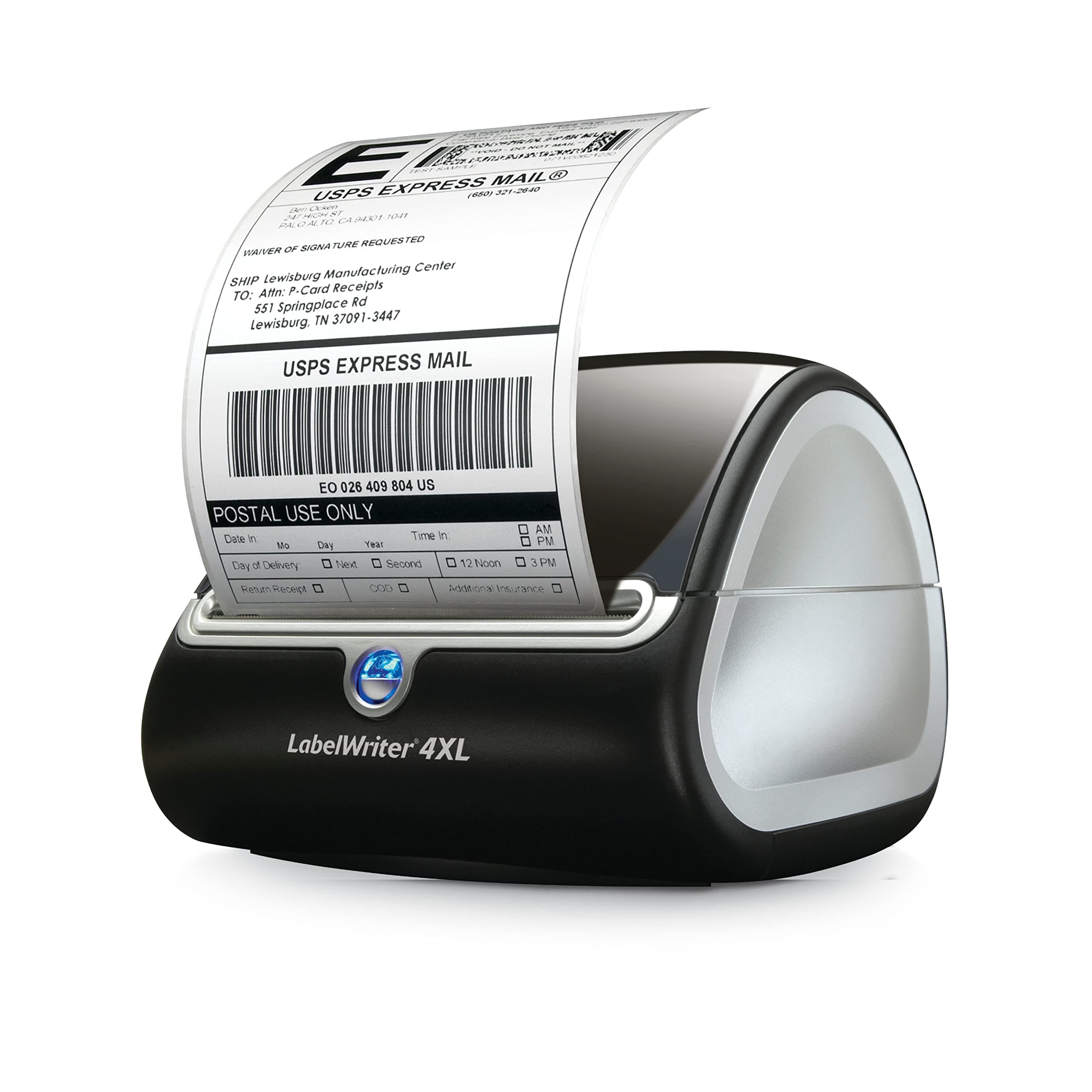

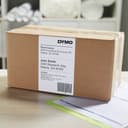
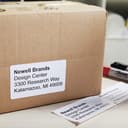
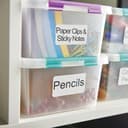
🚀 Ship Smarter, Print Bigger, Save More!
The DYMO LabelWriter 4XL is a compact, high-resolution thermal printer designed for professional eCommerce sellers and warehouse operations. It prints large 4x6 inch shipping labels quickly and clearly without ink or toner, supports major carriers and platforms, and offers free customizable software. While optimized for Windows, Mac users can achieve flawless printing with simple workarounds and Endicia integration, making it a versatile powerhouse for scaling your shipping game.


| ASIN | B002M1LGJ4 |
| Additional Printer Functions | Print Only |
| B&W Pages per Minute | 10 ppm |
| Brand | DYMO |
| Built-In Media | Printer Accessories, Printer Accessory |
| Color | Black/Gray |
| Compatible Devices | Laptops, PC |
| Connectivity Technology | USB |
| Control Method | App |
| Customer Reviews | 4.4 out of 5 stars 8,709 Reviews |
| Dual-sided printing | No |
| Duplex | |
| Global Trade Identification Number | 00041540012412, 00071701057068 |
| Hardware Interface | USB 2.0 |
| Initial Page Print Time | 10-20 seconds |
| Ink Color | Black |
| Item Dimensions D x W x H | 7"D x 5.5"W x 7.37"H |
| Item Type Name | Sanford Brands - 1755120, LabelWriter 4XL |
| Item Weight | 2.31 Kilograms |
| Manufacturer | Sanford |
| Maximum Copies Per Run | 480 copies |
| Maximum Copy Resolution Black and White | 300 x 300 dpi |
| Maximum Copy Speed Black and White | 10 ppm |
| Maximum Media Size | 4 x 6 inches |
| Maximum Print Resolution Black and White | 300 dpi |
| Maximum Sheet Capacity | 100 |
| Maximum print Resolution Color | 300 x 300 dpi |
| Model Name | 4XL Machine |
| Model Number | 1755120 |
| Model Series | 4XL |
| Other Special Features of the Product | Email Print |
| Output sheet capacity | 100 |
| Paper Size | 4 inch x 6 Inches |
| Print media | Labels |
| Printer Connectivity Type | USB |
| Printer Output Type | Monochrome |
| Printer Type | Thermal |
| Printing Technology | Thermal |
| Processor Count | 1 |
| Resolution | 300 x 300 |
| Scanner Type | Bar Code, Photo, Receipt |
| Series Number | 1755120 |
| Special Feature | Email Print |
| Specific Uses For Product | personal |
| Total USB 2.0 Ports | 1 |
| Total Usb Ports | 1 |
| UPC | 041540012412 071701057068 |
| Unit Count | 1.0 Count |
| Warranty Description | Limited Time Warranty |
| Warranty Type | Limited Warranty |
S**T
Great Printer For Creating 4x6 Ebay Shipping Labels with a Mac
I sell a lot of items on Ebay and I recently purchased this printer for the sole purpose of creating 4x6 inch Ebay Shipping Labels on a Mac. I was worried about whether I could get it to work because I've read about the various problems other people have been having getting it configured and the fact that Label Printers are not officially supported on the Mac. I'm pretty good at figuring things out so I took a chance and bought it. Long story short, I had to come up with my own solution in the end, but I ultimately got it to work quite easily. And I am now happily printing out perfect 4x6 inch Shipping Labels on a Mac. The printer is working flawlessly and the labels I'm printing are perfect. Therefore, this is a printer I highly recommend even if you're using a Mac. Below are the step-by-step instructions on how to got it to work: ********* How To Print Perfect 4x6 Shipping Labels from Ebay usng the DYMO LabelWriter 4XL Printer and a Mac... Most users selling items on Ebay already have their computer set up to print labels to their laser printer and to other kinds of printers, and for PC users, that also includes to Label Printers as well, such as the DYMO LabelWriter 4XL printer. Unfortunately for Mac users, Label Printers are not officially supported. The good news is, there is an easy way for Mac users to make use of the DYMO LabelWriter 4XL printer as well, and can easily print out perfect 4 inch by 6 inch shipping labels every single time. The following explains how... For Mac users, when printing a label via Ebay, on the page that says "Purchase and Print USPS Postage", once you've clicked the button that says "Purchase Postage" to buy your label, a secondary page should open allowing you to print your label. It is on that secondary page that we will choose certain options which will allow us to print directly to the DYMO Laserwriter 4XL printer with a Mac, and we can get perfect results every time. The following are my step-by-step instructions... Step 1 - After clicking on the "Purchase Postage" button and arriving on the secondary page, click the button above the label window that says "Print Label". This will open up a Print Dialog Box to allow you to select your printing options. Note, we will NOT be printing from this particular Print Dialog Box at this time because we first have to "crop" the label. To accomplish this, ignore all settings and options in the current Print Dialog Box. Instead, at the bottom of the Print Dialog Box window, click the button that says "Preview". This will open the entire label including your receipt in a separate window in Apple's Preview program. We will now use the "Crop" tool in Apple's Preview program to "crop" the label from the page... Step 2 - Once the label is open in Apple's Preview program, you may notice that it is now oriented sideways. Don't worry about the orientation. It will still print correctly once we're done. In Apple's Preview program, choose the rectangular selection tool and select the area around the label where you want it to be cropped (I generally select an area about a 1/4 inch around the entire label). Once the area has been selected, choose "Crop" from the Tool menu (this crops out the receipt and all other unnecessary portions of the page). All that is left is your label, perfectly cropped, and ready for printing. Note, before you proceed further, make sure your DYMO LabelWriter 4XL printer is connected to your computer and turned on, and that all software has been installed... Step 3 - From the File menu (still in Apple's Preview program) choose the "Print" command. This opens up the Print Dialog box again. We will now choose certain printing options in this dialog box... a. In the Print Dialog box, from the pull-down menu that says "Printer", choose the DYMO LabelWriter 4XL as your printer. (Note, your DYMO LabelWriter 4XL must be connected and turned on at this time in order for it to show up under this menu)... b. VERY IMPORTANT - Under the pull-down menu for "Paper Size", scan down through the list of sizes and choose the preset that says: "1744907 4 in x 6 in". This option will match your cropped label to the 4 inch x 6 inch labels in the 4XL printer (otherwise, it will print at the wrong size). c. ALSO IMPORTANT - Under the Scaling Options, choose the "Scale to Fit" option and also the "Print Entire Image" option (this scales your label image down to fit within the 4 in x 6 in label space without any portion of it being cropped off). d. Under the pull-down menu that says "Preview", pull down the menu and choose "DYMO Options". For the "Print Quality" setting, change the menu from "Text Only" to "Barcode and Graphics". For the "Print Density" setting, change the menu from "Low" to "High" (this tells the DYMO LabelWriter 4XL to print the label with maximum density and with maximum contrast). e. All options have now been set. We are now ready to print. Click the "Print" button at the bottom of the window. Your DYMO 4XL printer should begin printing, and should print out a perfect 4x6 shipping label every single time... By following the above, I've been happily printing out perfect 4x6 shipping labels from Ebay using a DYMO LabelWriter 4XL printer and a Mac. And it's been working without a hitch... ********** IMPORTANT UPDATE: For those of you who are using the Mac program Garage Sale when selling items on Ebay, an excellent shipping option to complement Garage Sale is the shipping program called "Endicia" (it costs about $16 per month). Not only does Endicia provide direct USPS Parcel Select support (which Ebay won't offer until March), but I've also learned that Endicia is fully integrated into Garage Sale. Meaning, once you have both Garage Sale and Endicia installed on your computer, and you then make an Ebay sale, in the Inspector Palette of Garage Sale there is an option you can choose which allows you to "ship the item with Endicia". By choosing that option from within Garage Sale, Garage Sale will then automatically find and launch your Endicia application, and the best part of all is that (...GET THIS!!!...) when Endicia opens, it will already be pre-populated with all your Ebay sale data! That's right, you won't have to copy and paste anything because all your Ebay details for the transaction will already be imported into Endicia and you'll be ready to print your label. All you have to do is just verify everything you see, make any changes needed, and then Print your shipping label. It's so easy. And did I mention that the Endicia for Mac program also offers direct support for the DYMO LabelWriter 4XL printer. That's right. Ebay doesn't offer any Label Printer support for Mac users, Paypal doesn't offer it, Stamps.com doesn't offer it, but Endicia DOES! There is a preference option in the Endicia for Mac program where Mac users can now print directly to the DYMO LabelWriter 4XL printer without any fuss or problems at all. I've been printing 4x6 labels using Endicia and the 4XL and it's been working like a charm. The 4x6 shipping labels are coming out perfect (even better than printing them via Ebay as outlined above). Endicia and Garage Sale are like a match made in heaven. I've found very few things otherwise to complain about. If you want a great Ebay shipping option solution that truly works on a Mac and is designed for a Mac, then Garage Sale and Endicia and the DYMO LabelWriter 4XL printer is your ticket.
R**T
Mac OSX Users Need to Know How to Restart the Print Queue
This is a great printer for Windows users and with the proper knowledge for Mac users too. As a Mac user, however, I returned for replacement a perfectly good printer because I did not know how to reset the print queue. And when I contacted tech support they knew nothing about it and only had in hand instructions to help windows users. This is not uncommon, and because the 4XL is used primarily by business for shipping labels, no surprise. Businesses are overwhelmingly windows users. But if you are a Mac user, please read the comments below and buy this printer with confidence. There are two things you need to do when the printer refuses to print but the software thinks the printer is ready to go and the print light is lit. 1. Reset the printer by unplugging the power supply and wait till the blue light goes out on the front. Count to 15 slowly to fully drain the capacitors and then plug the power back in. 80% of the time that will take care of things. 2. MAC OSX USERS.... After resetting the internal software of the printer following the above instructions, the software recognizes the printer and lights the print light, and yet pressing the print button does nothing, you need to restart ("resume") the print queue. You do this as follows: (a) Select Printers & Scanners in the System Preferences Window under the apple menu at upper left. (b) Select DYMO LabelWriter 4XL under the printers list. If it is not there, close and restart the label software. (c) Press "Open Print Queue" (d) In the upper left hand corner of the Print Queue window press "Resume". This will start printing the jobs in the queue. If you dont want them printed, press Pause and use the x marks by each print job to remove any or all of the items in the print queue. When the queue is cleared, press Resume. (e) Before leaving this window press Print on the Dymo Label software and verify that it prints. If not, make sure Resume is lit. If not, go back to (b) and proceed until you see Resume lit and press it. It is unfortunate that the Dymo label software does not provide direct access to the Mac print queue so that you can resume from the label application, but it does not. So Mac OSX users need to be cognizant that they need to resume the print process following the instructions above. This is a great printer with decent software, but optimized for Windows. And Tech Support was totally incapable of helping me when I called. Nice people but all their knowledge is for windows user support.
L**E
An Underrated Product
Well, I had this for a few weeks, so I can't speak for some of the complaints, but I do use this in combination with Endicia to ship packages off and it works very well. Before this, I had multiple Zebra 2844. For those who ship a lot, the Zebra 2844 (EPL) is the standard with most 4x6 labels made for it. It retails for $100-200 more than this machine, but is available ubiquitously used on ebay in the sub-$100 range. Once you get them up and running, they often print without fail. However, the 2844's are a complete pain in the behind to set-up. We're talking playing with settings and inconsistent software from the manufacturer itself. Sometimes I d/l 3-4 software packages before the 2844 even responded at all, let alone correctly. All this wouldn't be so bad except on my Windows Desktop, if I so much as unplugged the usb cord to the computer for whatever reason (say I was moving it), and replugged it 5 minutes later in the very same USB slot, the computer wouldn't remember the printer at all, and the nightmarish set-up process would begin anew. Not acceptable. Maybe this was because the 2844 accepted parallel and serial port input as well, and USB was an afterthought in the design? Whatever the reason, it's very plug-and-play unfriendly. Also, when the computer went to sleep, the unit needed to be restarted or it would fail to respond. The third defect was that everytime I printed out a shipping label, between 1 and 7 blank labels followed. This wasn't always the case, but it was when I had to reinstall the driver and I could never figure it out. I experienced these defects on both a 2004 and 2007 manufactured 2844, so I would say these aren't random issues. A while back, I got a notebook that replaced my desktop, I would move around, so plugging and unplugging the USB cords became a fact of life, so enter the 4XL. I always liked dymo's smaller models, they just worked, and this one was no different. You first install the very friendly software (whether d/led or from CD) and then any of their printers and the computer recognizes it without hesitation. I can plug my older Labelwriter 400 or my new 4XL or both and there will be no problems, whether the dymo label software is actively running or not (I use endicia instead). It prints without problem. I never had it jam. Can't say much more about it. As to any jamming, I would recommend when installing any new rolls of labels that are sealed at the end with adhesive tape, thow away the labels the tape was on so any adhesive residue never enters the mechanism. That may be a source of the problem people are experiencing. As for fading, this is a thermal printer and inherent to all thermal printers. Think of receipts as well that fade, as many are of the same technology. However, a nice dark print comes out of this that will last longer than those cheap receipts, so I have no fear shipping items, however long, long term labels for household items may require a second thought. They are affected by direct sunlight the most. Look up thermal printers in wikipedia for more info. If I had a complaint, it's the cost of the rolls. Dymo is ridiculously expensive, wanting nearly $0.16 a label. Although 4x6 labels are an industry standard with many makers, the dymo labels are slightly different with a oblong hole between each label, perhaps telling the printer where to stop. I'm not sure. I still have the zebra labels, but I haven't had a chance to see if they worked in this machine. Dymo warns you not to use any 3rd party labels, but that's because of profit motive. However, I see 3rd party compatible labels for this machine at a well known site called labelvalue. An excellent site, I got my zebra labels there for $0.051 (5.1 cents) a label. The dymo compatible labels are much cheaper than the "real thing" at $0.086 (8.6 cents) a label. For a small time operation, not a big difference. Figuring that I was throwing away 1-7 labels on the zebra per print, I still come out ahead. I just have a small business and ship a dozen items a day. The dymo serves me well. If you ship day and night, and have a desktop dedicated to shipping (where the cords will absolutely never be touched), a zebra may be better, sturdier and cheaper in the long haul.
C**D
Outstanding Printer now with full OSC Maverick Support
I will admit that I purchased this printer knowing from the previous reviews that I might have to perform some complex maneuvers in order to get it to work on my iMac with Maverick installed. Initially I was confused and followed many of the tips and tricks found in the previous reviews and decided to check the manufacturers site on the off chance there was an update. THERE WAS!!!!! Maverick is fully supported in the latest version. Download it NOW - version 8.5. What world of difference it made. Once I had it installed I went straight to eBay and immediately printed a shipping label as perfect as could be. I couldn't be happier. The settings saved and the process has already helped me with knocking out orders. If you ship more than a couple a day - PayPal has a multiple shipping option and this bad boy will print them all out like a dream. Batch processing at its best. I will keep you updated but if you are looking for a reliable, cost efficient option that integrates with most popular shipping services and eBay and Paypal then look no further. If you do not have Maverick, look at the previous reviews for help - don't give up!!! This unit is the bees knees! One word of advice - don't be skimpy with the provided labels - there is a piece of tape on it - cut the first couple of labels that the tape has touched to keep your 450xl clean. Additionally, if you make a mistake and forget to switch printers like I did, don't worry about it, for me it just spit out a blank label, it was east to pull the lever gently on the left and roll the label back into position so it did not go to waste. Just get into the habit of paying attention to what printer you need to use. Given time, this unit and the electronic shipping service discounts will pay itself back. One last thing - register register register - two year warranty. Great customer service. I couldn't be happier! Thanks so much to everyone who tok time to write their tips in their reviews. This has taken me from a hobby to feeling like I am a business. eBay and Paypal require delivery confirmation to protect the seller - don't tie chances on expensive items - this baby will take care of you in many more ways than one. I am beyond grateful for the printer! Nuff said for now...on to processing more auctions!
W**N
HORRIFYING CUSTOMER SERVICE
The only jam I have ever gotten with this printer was because I was cheap with the labels. I inserted a label that had partially "label glue" on it. And it ended up jamming in the process. However other then that, the printer has treated me way too good. No headaches, prints up to 50+ labels per day. However other than the functions of it printing shipping labels, you can print words or other documents you build on the program provided with this label printer. It's very easy to use the program. In terms of the shipping labels, sometimes it will not print or detect the first label of the roll. You would end up having to rip the first label out which becomes a single label. You can not reinsert it into the machine to use it. The printer does not detect it after the hole of the label rips because it detects individual labels by the two holes inbetween. It really sucks since it wastes some of the labels. I haven't clean the label for 2 months now, and it's still printing crispy black! UPDATE 5/7/11 I change my mind! This is horrid. I think I terribly jinxed it! After a month, the dymo started printing a BLANK LINE in the middle of my shipping label! Which means.. partially my tracking is cut off! Fine.. spent about a week e-mailing back and forth with the CS and had to spend around $15 to send back the labelwriter to Dymo Repair Center. I believe after a week or two after delivery I received my repaired dymo back! Me.. all jolly and happy. I went ahead and attempted to print a label. THERE IT GOES AGAIN! A horrifying WHITE LINE! I quickly e-mailed with the customer service, he says that I will have to ship back the dymo again at my own cost. UNFAIR! UNFAIR UNFAIR! I try to call customer service, go on live chat.. no ONE answers. I will upload a picture of how they had attempted to fix my dymo. UPDATE 7/5/11 I did get a BRAND NEW replacement of the Dymo afterwards after a month of emailing back and forth. I did not have to pay for any of the return shipments as prepaid labels were provided.
K**B
Put away the scissors, tape, paper - You'll love the Dymo 4XL for postage printing!
LOVE this time-saving Dymo LabelWriter 4XL! Since I handcraft curtains & home decor items (sewing all day from various online store sites - so in the evening when it's shipping time, I'm usually exhausted) - this Dymo 4XL label printer has made shipping time for me less stressful. While before, it was a nightmare as some may relate: "it was locate the run away scissors (who knows where the 3+ pairs disappear - but busy families know it happens often), make frequent runs to Staples for 3/4" wide tape or be up the creek if I run out in final moments before PO closes Hope the HP printer doesn't jam... or run out of paper or ink during postage printing time. Buy reams of print paper that would have 1/2 sheet wasted (give the half unused sheet to grand-daughter to draw). Yes, it was a MAJOR headache for me after sewing all day to deal with the regular way of printing my shipping labels with Stamps.com and my regular printers. Besides the daily task of having everything (scissors, tape, paper, printer) ready, I'd also grab whoever was around in the evening to grab a pair of scissors and roll of tape to start cutting the stacks of paper (shipping labels) to affix to the packages. It doesn't take long for your grown kids to dodge dropping by when mom's in a panic getting mail ready. LOL Now, with the money (tape, printer ink, reams of paper) and time saved, I have a little time to put my feet up and relax for a spell instead of being in a rushed panic mode every evening. Most times it was 2-4 of us rushing to get the evening packages ready to ship. Fast forward to a few weeks ago when I bought the Dymo 4XL printer... now it's easier for me (by myself!) to print & slap the shipping label on the mailer envelope. The 4XL works great with the Stamps.com program that I've been using for a few years. No need to change postage printing programs/software from what I'd been used to using. Printing international postage is a no problems with the 4XL as it even prints the custom forms needed for those shipping Priority International (yeah - you don't need to cut those any more!). The regular 1st Class International prints on the one sheet... while the Priority International will print out the 4 custom pages needed - one per label (just don't peel the backing off - leave intact so they can be put in the see-through custom mailing sleeve). I did purchase the other Dymo Labelwriter 450 twin turbo printer (still trying to figure some of the problems out with the twin turbo) the next day after falling in love with the 4XL. The 4XL prints everything I need, with the exception of printing labels for FedEx printed via the ebay 'print label' function. When we need those - I print with the regular HP desktop printer as I haven't figured out how to make the labels fit. Might upgrade to include the FedEx in our Stamps.com account again. Right now, it's very few being shipped by FedEx so doesn't warrant the cost upgrade. Actually, I don't mind getting the packages ready for shipping... it's a ONE person operation with the fast print speed of the Dymo 4XL printer. There's no ink to purchase!!!! Yipee! No more reams of paper to drag around. No more tape to stockpile! This has been ONE of the BEST purchases I've EVER made. I've been given back a hour every evening as the shipping time is much shorter without the manual process of using paper, regular printer with scissors & tape! If you are always in a hurried rush getting your online sales ready to ship and are wondering if the Dymo 4XL might be worth the investment - I recommend you take the plunge. Don't put it off as I did... wish I'd done it much sooner. When you have a small family run business - you appreciate the little things that make things easier. Purchasing the Dymo 4XL postage printer was one of the greatest time saver investment I've ran across in a long time. Absolutely LOVE IT!
L**D
Good but should have been better
labels: clear and readable software: simple and easy to navigate size: compact, doesn't clutter the desk portability: easy to move from computer to computer (install software first) - i note this however because some printers require you to reinstall the software EVERY time you unplug them, this one does not, install it once (before plugging in) and you can move this around or unplug it all you want after that complaints: 1. expensive labels, find yourself a discount label vendor (test them first by getting 1 roll before commiting to case purchases) - do not buy labels from amazon or resllers here, every one ive tried has been a rip off. dymo labels are around $36 a roll, the place i get them from now is about $18 (amazon will remove name if i post competitor site), other label printers are somewhat cheaper labels. basically if you are going to use more than 250 (1 roll) per week you might want to consider a different printer as the costs will eventually add up 2. you can only safely print ONE label at a time. you must rip off each label after it is printed. if you do not, than the printer will pull back and not only destroy part of the label you printed but you will get a build up of sticky on the teeth making it prone to jamming. if you need a large volume of labels printed in a row, you might want to consider another printer 3. very finicky loading a roll. you must put the spindle back absolutly perfect and in the right direction (even though at first glance both directions look the same...). if you find yourself having jamming issues it is very likely you have the spindle misaligned or the plate that holds the roll on reversed (mine came reversed out of the box, I had to flip it to stop it from jamming... i figured this out by trial and error). once you figure out how to properly put the plate back on and load it perfectly straight it becomes simple and obvious, unfortunately neither the instructions nor the product itself make any of this clear and a first time user will be prone to frustration unless they figure this out quickly. --- overall let me just say this: i have yet to find "the perfect label printer" they all have some kind of problems, what you have to do is find the one that is going to work for you and make yourself aware of its issues and how to overcome them. so for the most part, this printer is pretty good. you need to spend some time ensuring you have mastered putting the labels in correctly and you need to remember to always tear them off as you print them. but the speed, portability, small size, simple software, etc all more than make up for what i consider these minor issues. at this price you will be hard pressed to find a better label printer. on the flip side, if you have the room for it, and you have a computer that it will always be connected to and if you need multiple labels printed out before tearing them from the sheet, there are bigger more expensive printers with cheaper labels that may be better suited to larger volumes.
B**S
works like a charm!
I'm really loving this printer :) I held off on getting one forever, but saw it at a great price and jumped, and I'm happy I did. It was fairly easy to set up and install, although I did have to go to the Endicia site and download the Mac drivers (I did the installation disc to install, but it wasn't working, I found a post in a forum that said to skip the disc and just get 'em from the website) But after I did that it worked like a charm :) I was up and running and printing labels within 20-30 minutes of opening the box, and that included the time to get the drivers downloaded and installed. I use it to print shipping labels on Etsy, and so far I love it. It doesn't take up much room, and after I figured out that I was feeding the labels through the wrong slot, everything worked fine. If you've changed a register tape or a roll of fax paper then this will be a breeze, its very easy to change rolls. It takes up very little room and comes with a USB cable to connect the printer to your computer, an adaptor, and a plug, and a small roll of starter labels. my only minor issue- its chopping off the very top bit of my 4x6 labels, so I have to tick the box in my printer settings to flip the image orientation, there must be some way of formatting the labels that I haven't found yet to fix that. I was in the habit of highlighting the "to" address on my old inkjet labels, if you're going to do that test the highlighter on a sample. My gel highlighter (I use it because it doesn't smear the ink on inkjet labels) made the text fade and disappear in about 10 minutes :P can't wait for the busy season so I can put this little machine to work!
Trustpilot
Hace 5 días
Hace 1 mes